Comparison
CaptionCraft vs Canva's built-in captions
Canva's built-in Captions tool and CaptionCraft both turn the speech in your video into captions without leaving the Canva editor. Canva's tool is free, built in and comes with more than 20 caption style packs; CaptionCraft focuses on word-by-word caption templates, detailed style settings and word-level timing. This comparison uses Canva's help center (checked October 2026) and CaptionCraft's own feature set.
Updated October 21, 2026 · 4 min read
At a glance
Both tools start from an automatic transcript of your video. They differ in how you style and time the captions, which languages they cover, and what you get at the end. They aren't the only options: see our roundup of Canva apps for captions and subtitles for the other apps in the marketplace.
| Canva built-in Captions | CaptionCraft | |
|---|---|---|
| Where it lives | Built in: Captions in the video toolbar, or Text, then Dynamic text | Apps panel in the Canva editor |
| How you start | Select the video, click Captions, pick a style pack, click Generate captions | Open CaptionCraft, click Export, then review the subtitles |
| Editing | Edit caption text and timing on the video timeline | Edit each caption's text, start and end time, and word timing |
| Styling | More than 20 style packs (font, color and animation), then per-caption changes from the toolbar | 16 templates (see them), plus font, color, highlight color, outline, shadow, background, position and size, applied to every caption at once |
| Animation | Animated style packs; caption animations Reveal, Highlight and Snake are rolling out | Word-by-word effects: highlights, karaoke-style fills, one word at a time |
| Languages | 57 listed languages, plus translation into another language | Speech in more than 100 languages, no translation |
| Result | A captions layer in your design, downloaded with the video as MP4 | A rendered captioned video you add back to your design or download |
| Price | Promoted by Canva as free | Free to try; paid plans from $7.99 per week, $16 per month or $29 per month for teams |
When Canva's built-in captions are enough
Canva's own tool is free, needs no app, and keeps the captions as an editable layer in your design. For many videos, one of its style packs is all you need. Our guide shows how to add auto captions with Canva's built-in tool step by step.
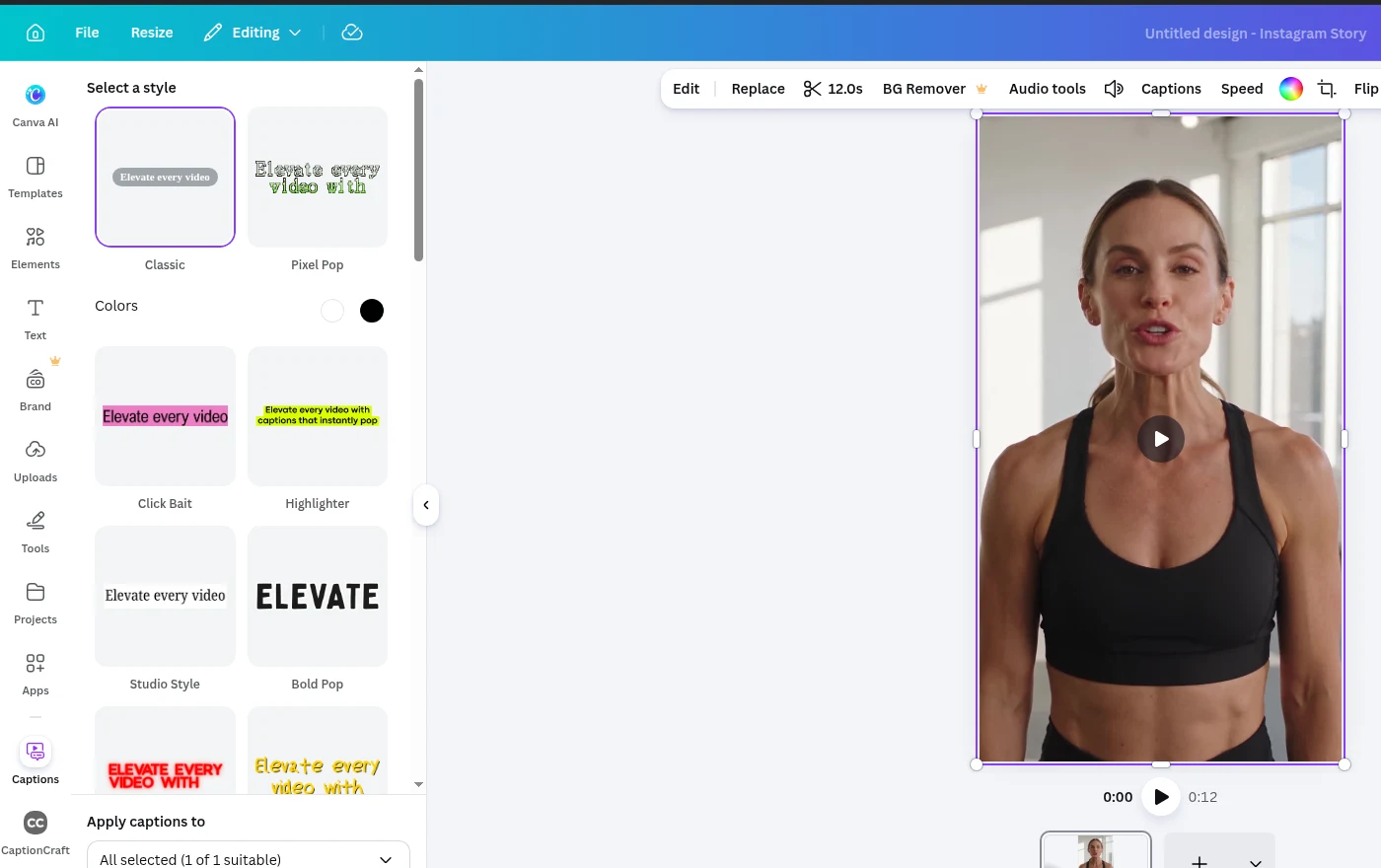
- Quick videos where one of Canva's style packs fits.
- Translated captions: Canva can translate them into another language when it generates them. CaptionCraft transcribes the spoken language but doesn't translate.
- Captions you want to keep editing segment by segment as part of the design.
When CaptionCraft is the better fit
CaptionCraft is built for captions that are part of the design: word-by-word effects that follow the speaker, detailed style settings that apply to every caption at once, and a look you can repeat on every video.
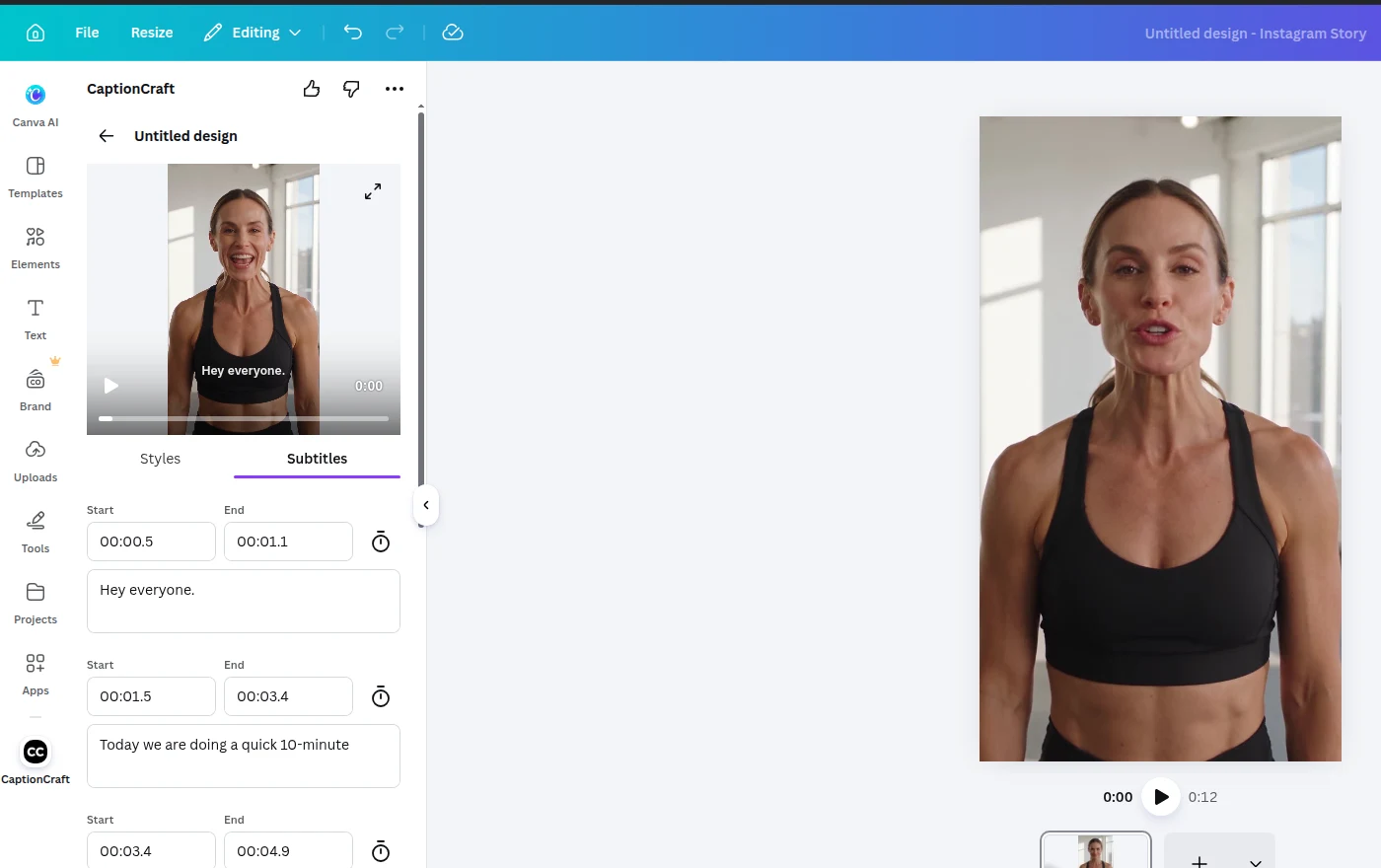
- Short-form social videos where word-by-word templates such as Karaoke or Highlight fit the pace of speech.
- Videos that need precise timing: you can adjust when each word appears.
- Series and brands: style settings apply to every caption at once, so one template keeps a whole series consistent. See how to style video captions in Canva.
- Videos in other languages: CaptionCraft recognizes speech in more than 100 languages, while Canva lists 57 for its captions. See multilingual subtitles in Canva.
How to try CaptionCraft in Canva
The app runs in the same editor, so you can compare both on the same video.
- 1
Open the Apps panel
In your Canva design, click Apps in the left panel and search for CaptionCraft. Installing the app is free.
- 2
Export and review
Click Export and choose the MP4 quality, then correct names, numbers and timing in the Subtitles tab.
- 3
Pick a template and render
Choose one of the 16 templates, adjust the style, preview it, then add the captioned video to your design.
Sources
- Generate and animate captions in Canva (Canva Help Center)
Frequently asked questions
Is CaptionCraft made by Canva?
No. CaptionCraft is an app in the Canva Apps marketplace made by Lumina Apps. It runs inside the Canva editor.
Which one is free?
Canva promotes its built-in auto captions as free. CaptionCraft is free to install and try; paid plans with more captioning time start at $7.99 per week.
Can Canva's built-in captions be animated?
Yes. Canva's style packs include animation, and Canva's help center lists caption animations such as Reveal, Highlight and Snake, which it is rolling out gradually.
Can I use both on the same video?
Yes. They are separate tools, so you can try both on the same video and keep the result you prefer.
Which one should I use for TikTok or Reels?
Both work. Canva's style packs are the quickest start. CaptionCraft's word-by-word templates, such as Karaoke or Highlight, give you more control over how each word appears and when. Either way, keep captions out of the areas the app covers: check a frame with the TikTok safe zone checker or the Instagram Reels safe zone checker.
Create captions directly in Canva
Generate, edit, style, preview, and export video captions with CaptionCraft.
Install CaptionCraft in Canva