CaptionCraft guide
16 caption styles for videos, with examples
Most caption styles belong to a few families: clean full-line subtitles, word-by-word highlights, karaoke-style fills, one word at a time, and stylized or boxed text. Below, all 16 CaptionCraft caption templates play on the same clip, so you can compare them side by side and choose one for your next video.
Updated October 21, 2026 · 5 min read
The main types of caption styles
A caption style is the combination of font, color, size, position and animation used for on-screen text. The right one depends on how people watch: short-form social video is often watched with the sound off, while tutorials and interviews need steady, readable lines.
| Type | What it looks like | Good for | CaptionCraft templates |
|---|---|---|---|
| Clean subtitles | One or two steady lines of text | Tutorials, interviews, accessibility | Classic, Elegant, Thin & Bold, Background |
| Word highlight | Full lines with the spoken word in another color or a box | Reels, TikTok, YouTube Shorts | Highlight, Box, Push, Action, Glow |
| Karaoke fill | Words fill with color as they are spoken | Talking-head clips, music, lyrics | Karaoke, Prompter |
| One word at a time | A single bold word on screen | Fast-paced hooks and punchlines | Smash |
| Stylized | Distinct colors, outlines, paper or serif looks | Branded series, storytelling | Ogre, Outline, Paper Ink, Storytelling |
All 16 caption templates in action
Each example is the CaptionCraft preview of the same 12-second clip with a template's default settings. The demo clip itself was generated with AI; the captions are real CaptionCraft output. Every template can then be adjusted: font, colors, outline, shadow, background, size and position.
Classic
White sentence-case text in full lines, centered low in the frame. A safe default for any video.
Highlight
Bold capitals with the spoken word in yellow. The highlight color can be changed.
Smash
One bold word at a time, for fast, punchy delivery.
Box
Sentence case with the spoken word inside a colored box.
Push
Large capitals with the spoken word in green.
Elegant
Lighter capitals over two lines for a calmer, editorial look.
Ogre
Short groups of green capitals placed higher in the frame.
Outline
Warm yellow text with a dark outline on a single line.
Paper Ink
Dark text on a white paper-like strip near the top of the frame.
Action
Bold italic capitals with the spoken word in yellow.
Prompter
A teleprompter-style line where spoken words light up.
Storytelling
Orange serif text over two lines, like a storybook.
Karaoke
Two lines of capitals that fill with purple as each word is spoken.
Glow
Pink glowing text with the spoken word emphasized.
Thin & Bold
A thin first line paired with a bold second line.
Background
White text on a dark rounded background for contrast on busy footage.
How to choose a caption style
Start from how your audience watches, then pick the least decorative style that still fits the brand. Our guide to styling video captions in Canva covers type, contrast and placement in more detail.
- Readability first: high contrast and a size that works on a phone.
- Match the pace: word highlights and karaoke fills suit fast speech; clean subtitles suit long explanations.
- Use one accent color, ideally from your brand, for highlighted words.
- Keep the same template across a series so viewers recognize your videos.
- Check that captions stay clear of platform buttons and faces before you publish.
How to apply a caption template in Canva
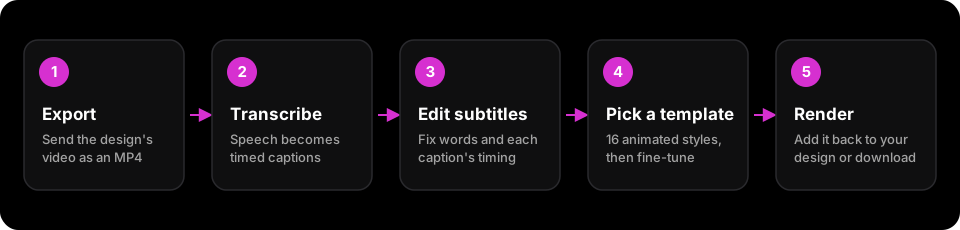
CaptionCraft runs inside the Canva editor. Once your design contains a video with dialogue, the whole process takes a few steps.
- 1
Open CaptionCraft and export
Open CaptionCraft from the Apps panel and click Export. Choose the MP4 quality and CaptionCraft transcribes the speech.
- 2
Check the subtitles
In the Subtitles tab, correct any words and adjust each caption's start and end time.
- 3
Pick and adjust a template
In the Styles tab, choose one of the 16 templates, then adjust the highlight color, size, font, outline, shadow, background and position. Settings apply to every caption at once.
- 4
Render
Preview the result, click Render, then add the captioned video back to your design or download it.
Frequently asked questions
What are karaoke captions?
Karaoke captions show a full line of text and fill or recolor each word as it is spoken. In CaptionCraft, the Karaoke and Prompter templates work this way.
Which caption style works best for TikTok and Reels?
Short-form videos are often watched without sound, so high-contrast word-highlight styles such as Highlight, Box or Karaoke are a common choice. Keep the text large and clear of the platform's buttons.
Can I change the highlight color?
Yes. Templates that highlight the spoken word have a Highlight color setting, so you can match your brand.
Can I use these styles for captions in other languages?
Yes. CaptionCraft creates captions in more than 100 languages and the templates apply the same way. See multilingual subtitles in Canva.
How do I add captions to my video first?
Follow our step-by-step guide on how to add auto captions in Canva, then come back to pick a style.
Create captions directly in Canva
Generate, edit, style, preview, and export video captions with CaptionCraft.
Install CaptionCraft in Canva