CaptionCraft guide
How to add auto captions in Canva
Yes, Canva can caption your videos automatically. Its built-in Captions tool turns spoken audio into editable on-screen text, and Canva apps such as CaptionCraft add animated caption styles on top of that. This guide covers both methods step by step, plus the quick review that makes automatic captions ready to publish.
Updated October 21, 2026 · 5 min read
Does Canva have auto captions?
Canva has a built-in Captions feature that transcribes the speech in your video and adds the result as editable text. You can correct the words, adjust the timing, and change the look before you export.
You can also caption videos with an app from the Canva Apps panel. CaptionCraft is one of them: it runs inside the Canva editor and focuses on animated, styled captions, such as karaoke and word highlights, in more than 100 languages.
How to add auto captions with Canva's built-in tool
Canva's own Captions tool is the quickest way to caption a video, and it's free. Menu names can change as Canva updates its editor; this is the flow we tested in October 2026, and it matches Canva's help center.
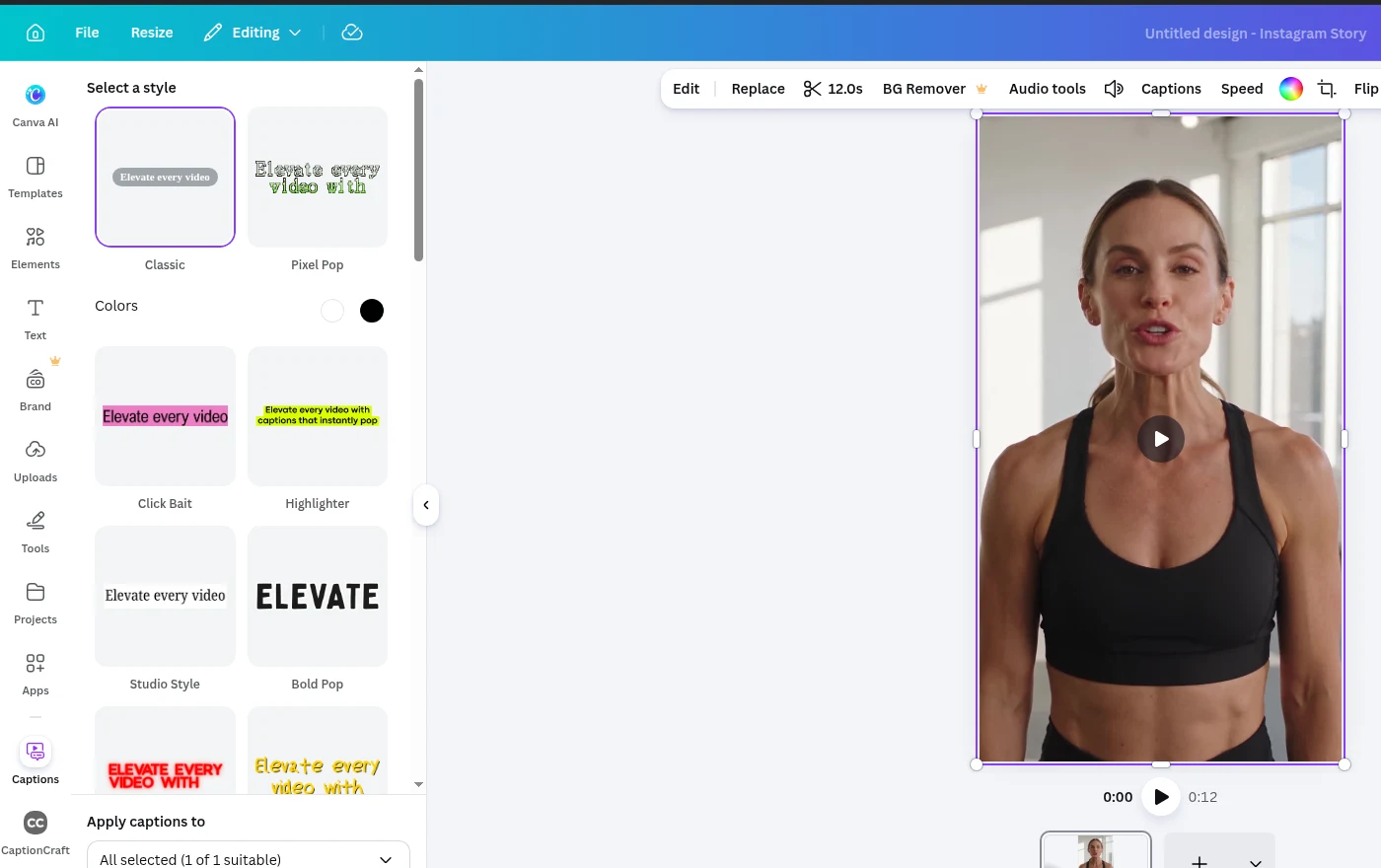
- 1
Add your video to a design
Open a video design or template and upload the clip you want to caption. Finish your main cuts first so the captions match the final timing.
- 2
Open Captions
Click the video to select it, then click Captions in the toolbar above the canvas. You can also open it from Text, then Captions under Dynamic text.
- 3
Generate the captions
Pick a caption style pack, such as Classic, Highlighter or Bold Pop. If you need another language, choose it under Translate captions into. Then click Generate captions.
- 4
Review the text and timing
The captions appear as their own layer on the video timeline. Read every caption, fix names, numbers, and words affected by music or accents, and adjust the timing where needed.
- 5
Style and export
Select a caption to change its font, color, size or effects from the toolbar, or use Animate to add a caption animation where it's available. Preview the whole video, then download it as an MP4 video.
How to add animated auto captions with CaptionCraft
Use CaptionCraft when you want captions that move with the speaker, such as a karaoke-style highlight that follows each word, and a style you can reuse across every video.
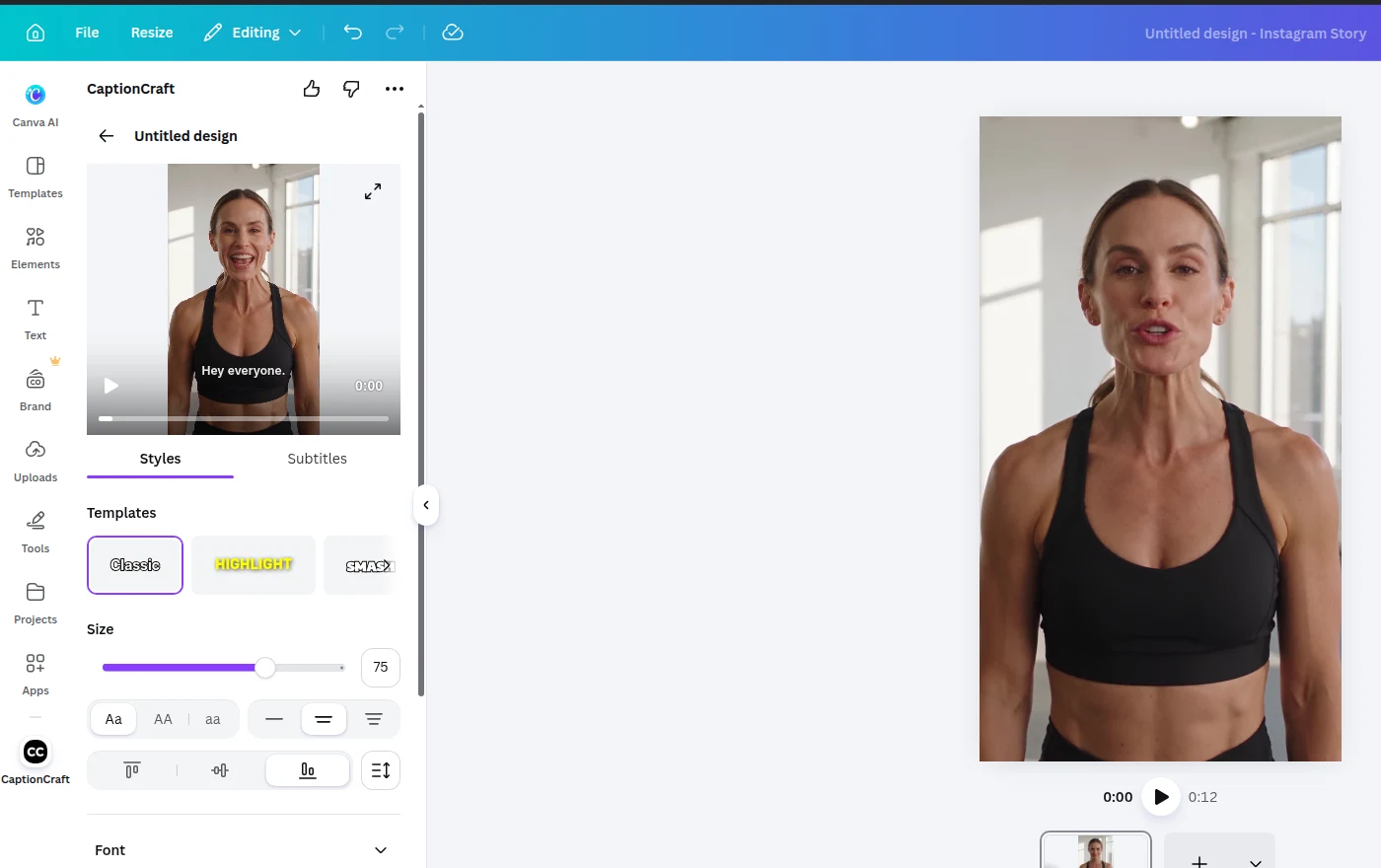
- 1
Open CaptionCraft in Canva
Open the design that contains your video, click Apps in the left panel, and search for CaptionCraft. The app is free to install.
- 2
Export the video
Click Export and choose the MP4 quality. CaptionCraft then transcribes the speech, in more than 100 languages.
- 3
Review the subtitles
In the Subtitles tab, correct names, punctuation, and numbers, and adjust each caption's start and end time. You can also fine-tune the timing of individual words so each highlight lands exactly when it is spoken.
- 4
Choose a template
In the Styles tab, pick one of 16 caption templates, including Karaoke, Highlight, Glow, Outline, and Box (see all 16 caption styles). Then adjust the font, colors, highlight color, outline, shadow, background, position, and size, following these caption styling tips.
- 5
Render and add it to your design
Watch the live preview, click Render, then add the captioned video back to your Canva design or download it.
Canva captions or CaptionCraft: which should you use?
Both start from an automatic transcript. The difference is how much control you want over the finished captions.
- Choose Canva's built-in captions when one of its free style packs fits, or when you want Canva to translate the captions.
- Choose CaptionCraft for word-by-word templates, such as karaoke fills or word highlights, with detailed style settings for short-form social video.
- Choose CaptionCraft when you need precise control over the timing of each word.
- Choose CaptionCraft when one caption style must stay consistent across a series of videos or a whole team.
Get more accurate captions before you transcribe
Start with the final cut of your video whenever possible. If you change the timing after generating captions, you may need to review the caption sequence again.
Clear speech produces a cleaner first draft. Reduce loud background music, avoid overlapping speakers when you can, and listen once for sections where names or specialist terms may need manual attention.
- Use the final or near-final video edit.
- Check that dialogue is louder than background audio.
- Write down names, brands, and technical terms you expect to correct.
Edit for meaning, not only spelling
A correct transcript can still be difficult to read on screen. Keep each caption focused on one short idea, place punctuation where a viewer naturally pauses, and remove filler words when they do not change the meaning.
Pay special attention to the opening seconds. Viewers decide quickly whether to keep watching, so the first caption should be immediate, accurate, and easy to scan.
Run a final mobile preview
Most social video is watched on a phone. Preview at a small size and confirm that the captions do not collide with platform controls, logos, faces, or important visual details.
If the text feels crowded, shorten the caption before shrinking the font. Readability should win over fitting more words on screen.
Sources
- Generate and animate captions in Canva (Canva Help Center)
Frequently asked questions
Does Canva have auto captions?
Yes. Select a video and click Captions in the toolbar, or go to Text and choose Captions under Dynamic text. Canva's built-in Captions feature turns the speech into editable captions. Apps such as CaptionCraft add more animated caption styles inside the same editor.
Are Canva auto captions free?
Canva promotes its built-in auto captions as free. CaptionCraft is free to install and try, and paid plans with more captioning time start at $7.99 per week.
Which Canva feature automatically creates subtitles for spoken audio?
Captions. It transcribes the spoken audio in a video and adds the text as subtitles. Magic Write, Audio, and Resize do not create subtitles.
Why are my auto captions inaccurate?
Background music, overlapping speakers, strong accents, and uncommon names cause most errors. Lower the music, record clear speech, and read the full transcript before you export.
Can I edit all captions at once?
Yes, in both tools. In Canva's built-in Captions, choosing a style pack applies it to every caption, and other changes are made caption by caption. In CaptionCraft, the template and all style settings apply to every caption in the video, so you change the font, colors, or position once.
Can I create captions in other languages?
Yes. CaptionCraft creates captions in more than 100 languages from the speech in your video. Canva's built-in Captions lists 57 languages and can also translate captions into another language. Review names and local expressions with a fluent speaker before you publish, as explained in our multilingual subtitles guide.
Create captions directly in Canva
Generate, edit, style, preview, and export video captions with CaptionCraft.
Install CaptionCraft in Canva