Free tool
TikTok safe zone checker
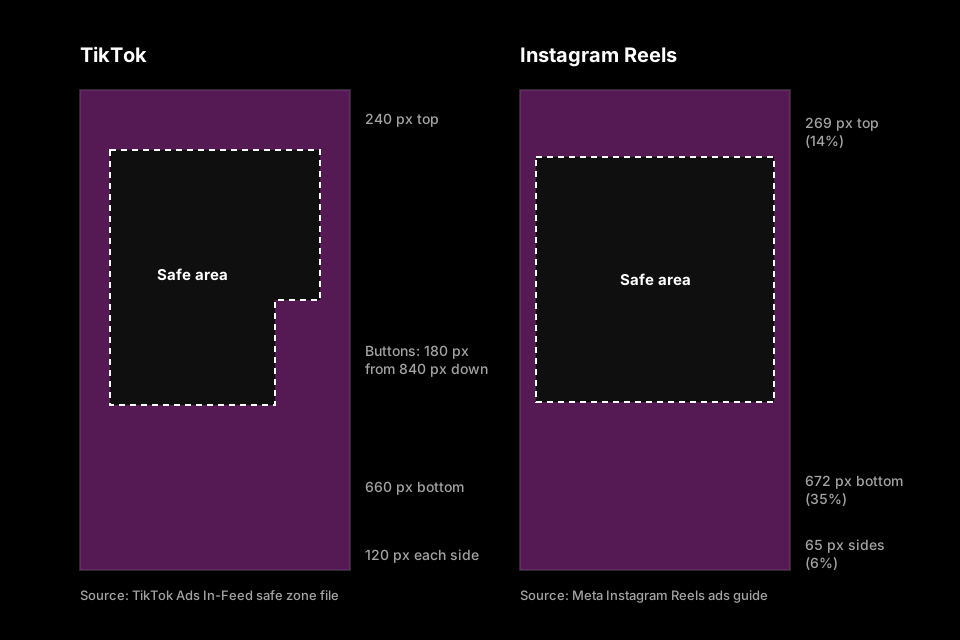
TikTok's safe zone is the part of a vertical video that its interface doesn't cover. On a 1080×1920 frame, keep 240 px clear at the top, 660 px at the bottom and 120 px on each side, plus a 180 px column on the right from 840 px down, where the like, comment and share buttons sit. Open a frame or video below to see it with the overlay.
Updated October 23, 2026 · 5 min read
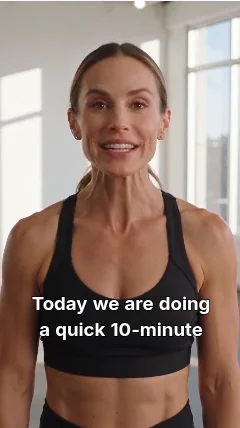
Sample: CaptionCraft preview on AI-generated demo footage
TikTok margins at 1080×1920
| Top | 240 px |
|---|---|
| Bottom | 660 px |
| Left and right | 120 px each |
| Button column | 180 px wide, inside the right margin, from 840 px down to the bottom margin |
Red areas may be covered by the app's buttons, captions and labels. Keep captions, faces and text inside the green outline.
Runs in your browser. Your file never leaves your device.
TikTok safe zone dimensions
TikTok publishes its safe zone as a downloadable file in the TikTok Ads Manager specs for In-Feed ads. The file is drawn on a 720×1280 frame. The table scales it to the 1080×1920 size most editors export.
| Keep clear | 720×1280 | 1080×1920 | Share of the frame |
|---|---|---|---|
| Top | 160 px | 240 px | 12.5% of the height |
| Bottom | 440 px | 660 px | 34.4% of the height |
| Left and right | 80 px each | 120 px each | 11.1% of the width each |
| Button column (right) | 120 px wide, from 560 px down | 180 px wide, from 840 px down | 16.7% of the width, lower half |
How to check your video
The checker draws TikTok's covered areas over your own frame, in your browser. Nothing is uploaded.
- 1
Open a frame or the video
Click Open an image or video and pick a screenshot, a thumbnail or the exported MP4. Videos play under the overlay, so you can scrub to the busiest moment.
- 2
Look for anything in the red areas
Text, captions, faces, logos and calls to action should sit inside the green outline. If the file isn't 9:16, the checker says so, because TikTok may crop or pad it differently.
- 3
Download the overlay for your editor
Download overlay PNG gives you a transparent 1080×1920 template to place on top of your design while you edit. Remove it before you export.
Where captions should go on TikTok
The bottom third is the most crowded part of a TikTok: the account name and the post caption sit there, and the buttons fill the lower right. Captions placed at the usual subtitle height end up underneath them.
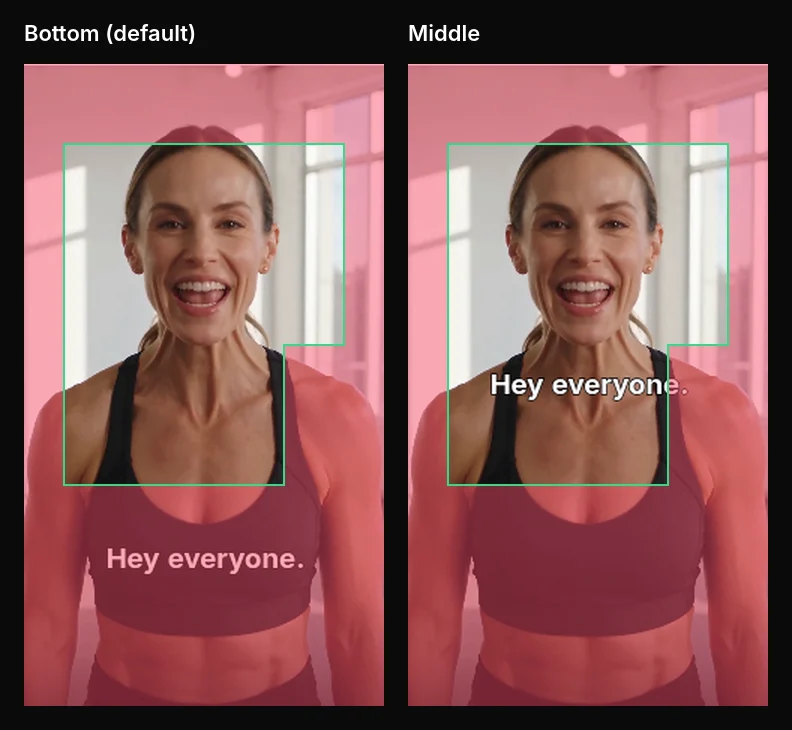
We checked this with CaptionCraft in Canva. With the Classic template and its default Bottom position, the caption line sat at about 75–79% of the frame height, inside TikTok's 660 px bottom margin. Switching to Middle moved it to about 47–54%, clear of the bottom margin. A wide line still reached into the button column on the right, so on TikTok keep lines short or reduce the text width as well.
- 1
Set the position once
In CaptionCraft's Styles tab, the position buttons move every caption at once: top, middle or bottom. Middle clears TikTok's bottom margin.
- 2
Keep lines short
Use fewer words per line, a smaller size or a narrower text width so the line doesn't run into the button column. See these caption styling tips.
- 3
Check the render
Render, choose Download, and open the MP4 in the checker at the top of this page. It's the quickest way to see the whole video against the overlay.
Use the overlay in Canva
Canva's Instagram Story size is 1080×1920, the same 9:16 frame TikTok uses, so the overlay PNG fits a page exactly.
- 1
Upload the PNG
Open Uploads in the left panel, upload tiktok-safe-zone-1080x1920.png and add it to the page.
- 2
Stretch it over the page
Resize it to cover the whole page and keep it on top while you place text, stickers and captions.
- 3
Delete it before exporting
Remove the overlay before you download the design or export it to a captions app. CaptionCraft exports the design as it is, so a forgotten overlay would end up in the video.
Limits of any TikTok safe zone template
These margins come from TikTok's ad specs; regular posts aren't covered by them, though their layout is similar. TikTok says the safe zone depends on the video's shape, the length of the caption and any extra ad formats, and that the longer a caption is, the smaller the safe zone gets. The covered area can also change with the device and app updates.
Treat the overlay as a guide, not a guarantee: keep the important things well inside it, then check one real post on a phone. For Instagram, use the Instagram Reels safe zone checker: its margins are different, and a video that fits one platform can still be covered on the other.
Sources
- TikTok Auction In-Feed Ads: specifications and safe zone files (TikTok Ads Manager)
- Specifications for TikTok Interactive add-on: Download Card (TikTok Ads Manager)
Frequently asked questions
What is the TikTok safe zone?
It's the area of a 9:16 video that TikTok's buttons, username, caption and sound label don't cover. Text, faces and captions placed inside it stay visible.
What size is the TikTok safe zone?
On a 1080×1920 video, keep 240 px clear at the top, 660 px at the bottom and 120 px on each side, plus a 180 px column on the right from 840 px down. That leaves a safe area of 840×1020 px with a notch on the right.
Where should I put captions on a TikTok?
Above the bottom third and away from the right edge. Around the middle of the frame, with short lines, is usually safe.
Is my video uploaded?
No. The checker opens your file in the browser and draws the overlay on top. Nothing leaves your device.
Is the TikTok safe zone the same as Instagram Reels?
No. Meta's Reels guidance keeps 14% clear at the top, 35% at the bottom and 6% on each side, with no button column. Use the Instagram Reels safe zone checker for Reels.
Create captions directly in Canva
Generate, edit, style, preview, and export video captions with CaptionCraft.
Install CaptionCraft in Canva