Comparison
Canva vs CapCut for captions
If the video is already in a Canva design, caption it in Canva; if you edit footage in CapCut or need a separate SRT subtitle file, caption it in CapCut. Both generate automatic captions you can edit, style and translate. The differences are where you work, what you get at the end, and how much control you have over the caption design. This comparison only uses what Canva and CapCut say on their own pages (checked October 2026); we didn't test either tool's accuracy.
Updated October 26, 2026 · 5 min read
At a glance
CapCut is a video editor, so captions are one step in an editing timeline. Canva is a design tool with video, so captions sit next to the rest of your design: brand fonts, graphics, other pages. Canva also has caption apps in its marketplace, such as CaptionCraft (ours), which add more caption templates inside the same editor.
| CapCut | Canva built-in Captions | Canva + CaptionCraft | |
|---|---|---|---|
| Where you start | Captions, then Auto captions (CapCut Web); Text, then Auto captions (desktop) | Select the video and click Captions in the toolbar | Apps panel, then CaptionCraft, then Export |
| Spoken languages | 20+ languages on CapCut Web, per its AI caption page | 57 languages listed in Canva's help center | More than 100 languages |
| Translation | Yes, into a target language | Yes, when you generate the captions | No |
| Styling | Caption style presets, then font, size, color, effects and motion | More than 20 style packs, then per-caption changes from the toolbar | 16 templates plus font, color, highlight, outline, shadow, background, position and size for every caption at once |
| Editing | Edit lines on the timeline or in a list view | Edit text and timing on the timeline | Edit each caption's text, start and end time, and word timing |
| Subtitle files | Imports SRT on CapCut Web; its subtitles page says you can export a separate SRT file | Not covered on the Canva help page we read | No subtitle file export: captions are rendered into the video |
| Price | CapCut's AI caption page says the feature is free on CapCut Web; Pro pricing varies by region | Promoted by Canva as free | Free to try; paid plans from $7.99 per week |
How captions work in CapCut
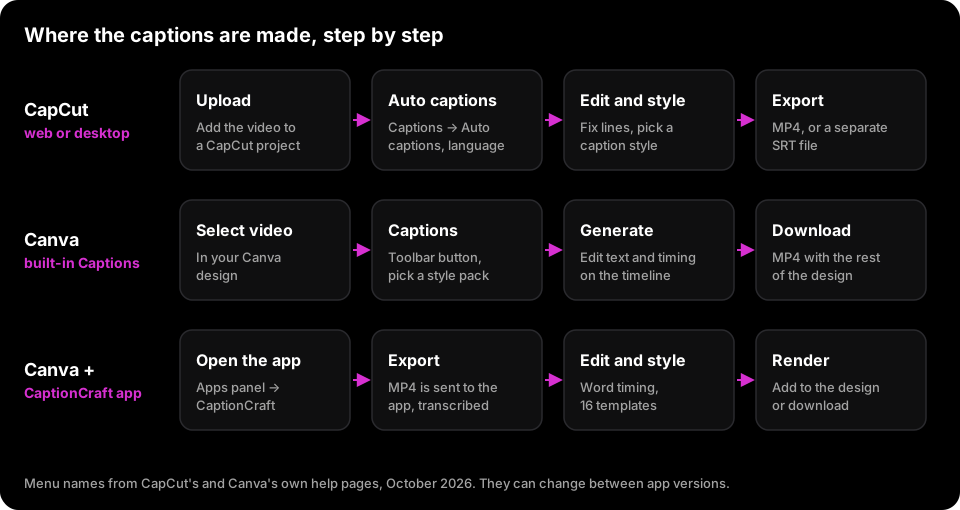
On CapCut Web, CapCut's own pages describe the flow as: upload the video, click Captions in the left panel, choose Auto captions, pick the spoken language and click Generate. In the desktop app the same feature sits under Text, then Auto captions. The captions land on the timeline, where you fix the wording and pick a style.
CapCut is strongest when captions are part of a larger edit: cuts, music, effects and voiceover in the same project. Its pages also cover two things Canva's help page doesn't: importing your own SRT file on CapCut Web, and exporting the captions as a separate SRT file, which you can upload to YouTube or Vimeo as closed captions. If you need a WebVTT file instead, convert it with our SRT to VTT converter.
Pricing: CapCut's help center says CapCut Pro pricing varies by region, device and promotion, and its ad-video guide says feature access and export options can vary by plan, platform, account and region. Check the current terms in your own account before you rely on a feature.
How captions work in Canva
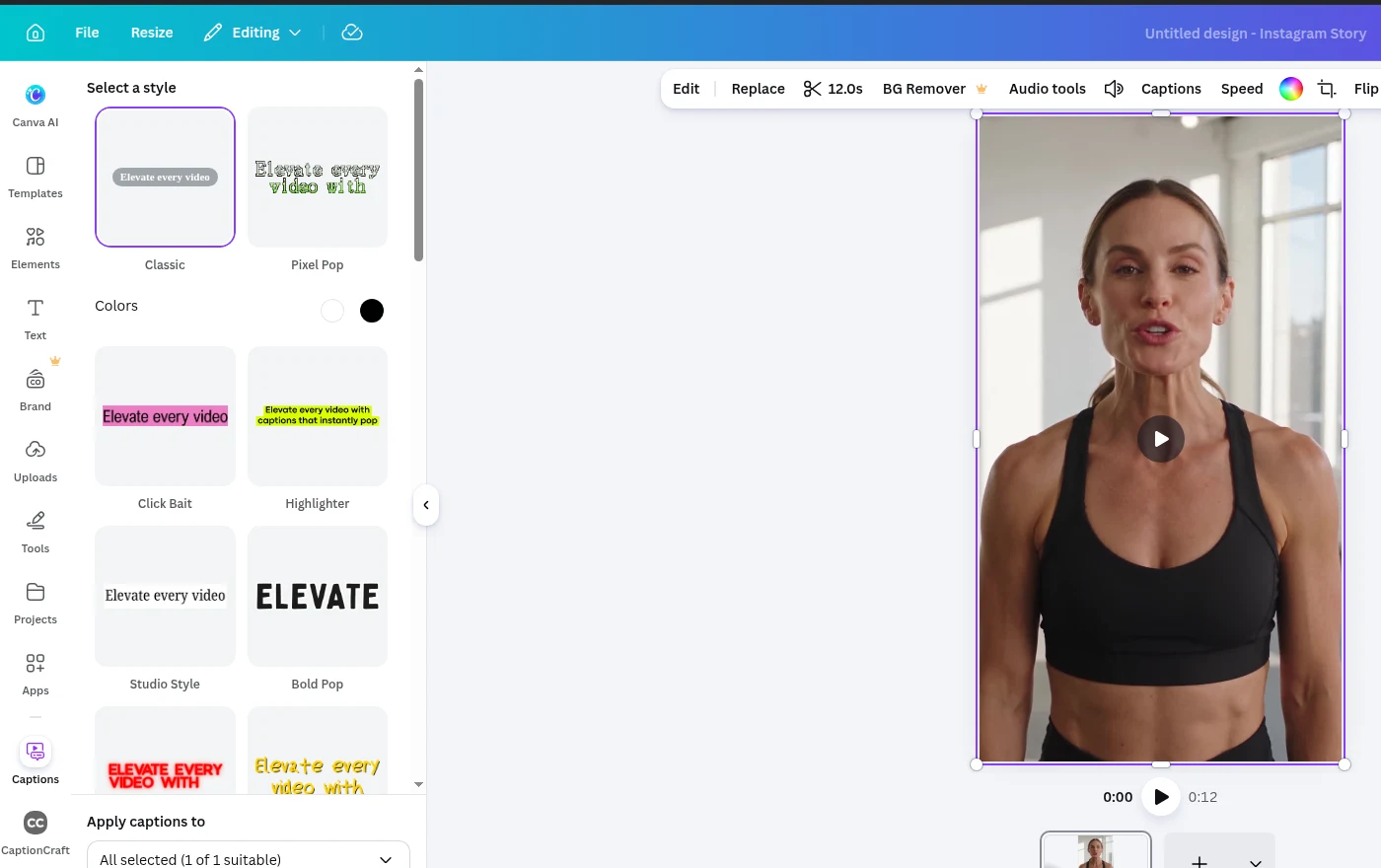
Canva's built-in Captions tool runs inside the design. Select the video, click Captions in the toolbar, pick one of more than 20 style packs, optionally choose a language to translate into, and click Generate captions. The captions become a layer you can edit on the timeline, and they download with the video as an MP4. Our step-by-step guide covers adding auto captions in Canva.
The advantage is that the captioned video stays part of the design: the same fonts and colors as your brand, other elements on the page, and every other format Canva exports. Menu names in both tools change between versions, so expect small differences from these screenshots.
Where a Canva caption app fits
If you like working in Canva but want captions that follow the speaker word by word, a caption app from Canva's marketplace fills that gap without moving the video to another editor. CaptionCraft transcribes the video, lets you correct each caption and the timing of individual words, then renders it with one of 16 templates, such as Karaoke, Highlight or Prompter. The rendered video goes back into your design or downloads.
It doesn't translate and doesn't export subtitle files, so it isn't a replacement for CapCut's SRT workflow. Compare it with Canva's own tool in CaptionCraft vs Canva's built-in captions, or browse every template in our caption styles guide.
Which one should you use?
Pick by where the rest of the work happens, not by the caption feature alone. Moving a video between tools costs an export and a re-upload each time.
- You edit footage in CapCut (cuts, music, effects): caption it there too.
- You need an SRT file for YouTube, Vimeo or a client: CapCut, whose pages describe SRT export. CaptionCraft doesn't export subtitle files.
- The video is part of a Canva design (brand template, slides, a post with graphics): Canva's built-in Captions.
- You want word-by-word or karaoke captions without leaving Canva: a caption app such as CaptionCraft. See the best Canva caption apps for the others.
- You need translated captions: CapCut or Canva's built-in Captions. Review names and terms either way.
- Posting to TikTok or Reels: whichever tool you use, keep captions out of the covered areas with the TikTok safe zone checker.
Sources
- AI caption generator (CapCut Web) (CapCut)
- Add subtitles to video (CapCut)
- How much does CapCut Pro cost? (CapCut Help Center)
- How to add voiceover and captions to your ad videos with AI (CapCut Help Center)
- Generate and animate captions in Canva (Canva Help Center)
Frequently asked questions
Is CapCut better than Canva for captions?
Neither is better for every video. CapCut fits videos you edit in CapCut and workflows that need an SRT file; Canva fits videos that are part of a Canva design.
Are CapCut auto captions free?
CapCut's AI caption page says the feature is free on CapCut Web. Its help center also says feature access and Pro pricing vary by plan, region and account, so check in your own account.
Does Canva have auto captions like CapCut?
Yes. Canva's built-in Captions tool generates captions from the speech in a video, with more than 20 style packs and translation into another language.
Can I edit in CapCut and caption in Canva?
Yes. Export the edited MP4 from CapCut, upload it to Canva, then caption it with Canva's Captions tool or an app such as CaptionCraft.
Can I export an SRT file from Canva?
The Canva help page we read only describes downloading captions with the video as an MP4. CaptionCraft also renders captions into the video and doesn't export SRT files.
Create captions directly in Canva
Generate, edit, style, preview, and export video captions with CaptionCraft.
Install CaptionCraft in Canva