CaptionCraft guide
How to add subtitles to a video in Canva
To add subtitles to a video in Canva, select the video, click Captions in the toolbar and click Generate captions: Canva transcribes the speech and adds the subtitles as an editable layer. You can also type subtitles yourself as timed text boxes, or use an app such as CaptionCraft for animated subtitles. This guide walks through all three, with screenshots from the Canva editor in October 2026, and explains which Canva subtitles end up in your downloaded video and which don't.
Updated October 27, 2026 · 7 min read
Three ways to add subtitles in Canva
All three put the subtitles into the video you download as an MP4. Pick by how much typing you want to do and how the subtitles should look.
| Method | How the text is made | Timing | Best for |
|---|---|---|---|
| Canva Captions | Generated from the speech, then edited | Automatic; drag a segment's edges to adjust | Most videos with speech |
| Text boxes with element timing | Typed by you | You set when each text box appears | A few lines, on-screen titles, videos without clear speech |
| CaptionCraft app | Generated from the speech, then edited | Automatic, down to individual words | Animated word-by-word subtitles, 100+ languages |
Method 1: generate subtitles with Canva Captions
Canva's built-in Captions feature is free and the fastest route. Your design must be a video or social media design with speech in it, and the video must be fully uploaded first.
- 1
Open Captions
Select the video and click Captions in the toolbar. You can also open Text and choose Captions under Dynamic text, or click Captions in the left panel if it's pinned there.
- 2
Pick a style and the language
Choose a caption style pack, such as Classic or Highlighter. Canva detects the spoken language automatically; if it guesses wrong, click Edit next to Automatically detect spoken language and choose it. To get subtitles in another language, pick it under Translate captions into.
- 3
Generate captions
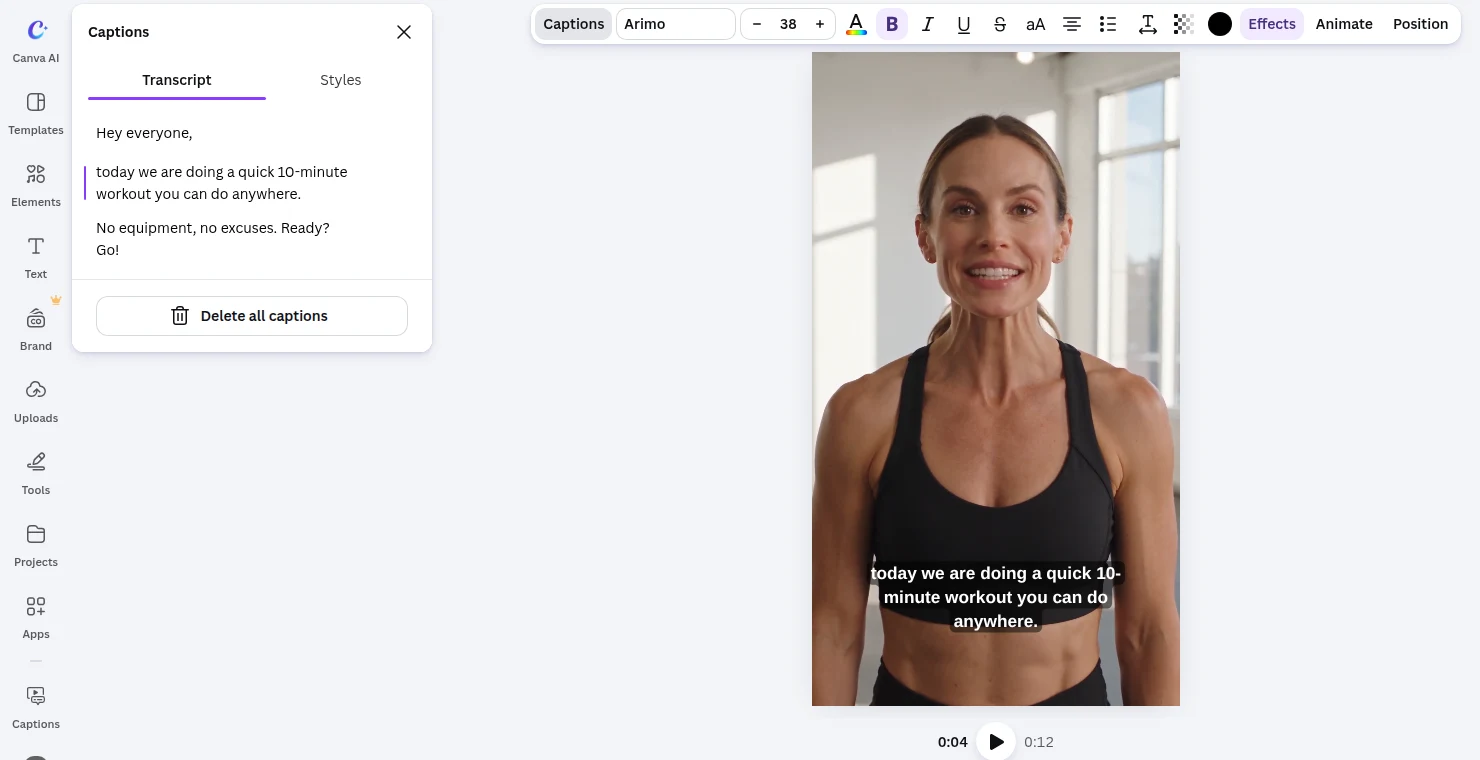
Click Generate captions. On our 12-second demo clip, the subtitles were ready in under 20 seconds, split into three short segments.
- 4
Fix the text in the Transcript tab
Select any subtitle and click Captions in the toolbar. The Transcript tab lists every segment: click a line and type to correct names, numbers and punctuation. The Styles tab changes the style pack for all subtitles at once.
- 5
Adjust the timing and download
In the timeline, drag the start or end edge of a segment to change how long it stays on screen. Then download the design as an MP4 video; Canva doesn't embed captions in image or PDF downloads.
Method 2: type subtitles as timed text boxes
Typing subtitles yourself makes sense for a handful of lines, for videos where speech recognition struggles (loud music, several speakers), or when the text isn't spoken at all. Canva's own help center suggests it as a last resort when captions fail to generate. The trick is element timing, which controls when each text box appears.
- 1
Add a text box
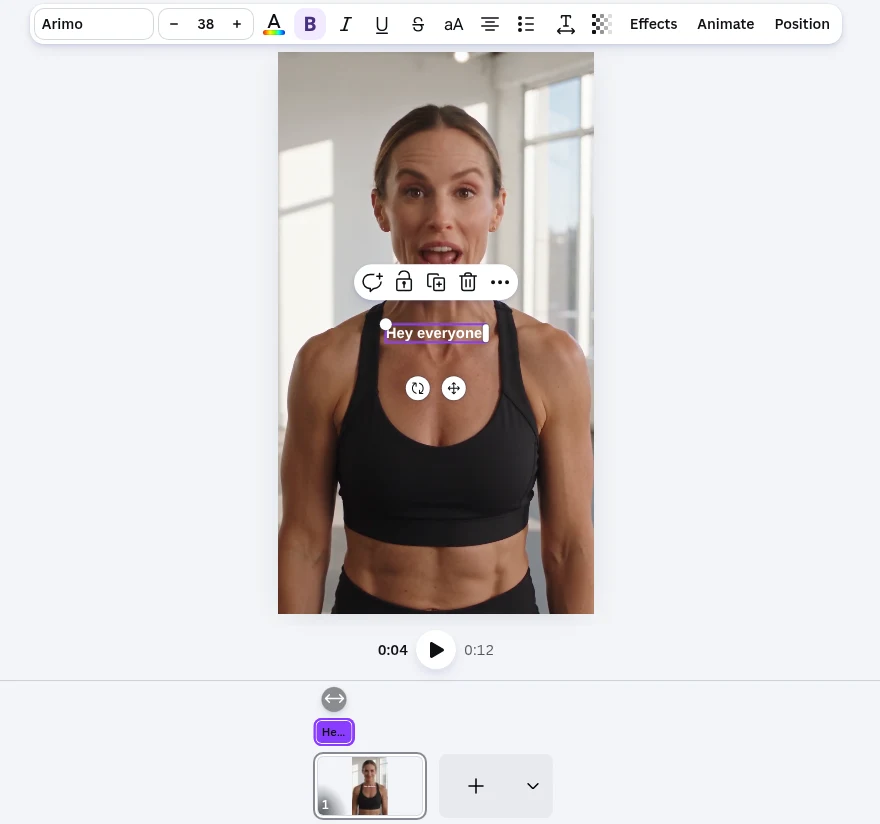
Open Text and add a text box (or press T), type the first subtitle line, and place it in the lower part of the frame.
- 2
Show its timing
Click the … (more) button on the text box and choose Show element timing. A bar with the text appears above the page in the timeline.
- 3
Drag the bar to the right moment
Drag the bar's ends so the text shows only while that line is spoken. Play the video to check, then nudge the edges.
- 4
Repeat for each line
Duplicate the text box for the next line, change the text and move its timing bar. Keeping the same font, size and position on every box makes the subtitles look consistent.
Method 3: add animated subtitles with CaptionCraft
CaptionCraft is a Canva app that turns speech into subtitles and animates them, for example a karaoke fill that follows each word. Open the design, click Apps in the left panel and search for CaptionCraft; the app is free to install.
Click Export to send the video to the app, which transcribes it in more than 100 languages. Correct the text and the start and end times in the Subtitles tab, pick one of 16 templates in the Styles tab, then click Render and add the captioned video back to your design or download it. Our guide to auto captions in Canva shows each screen, and the caption styles guide shows every template moving.
View-only captions: subtitles that don't download
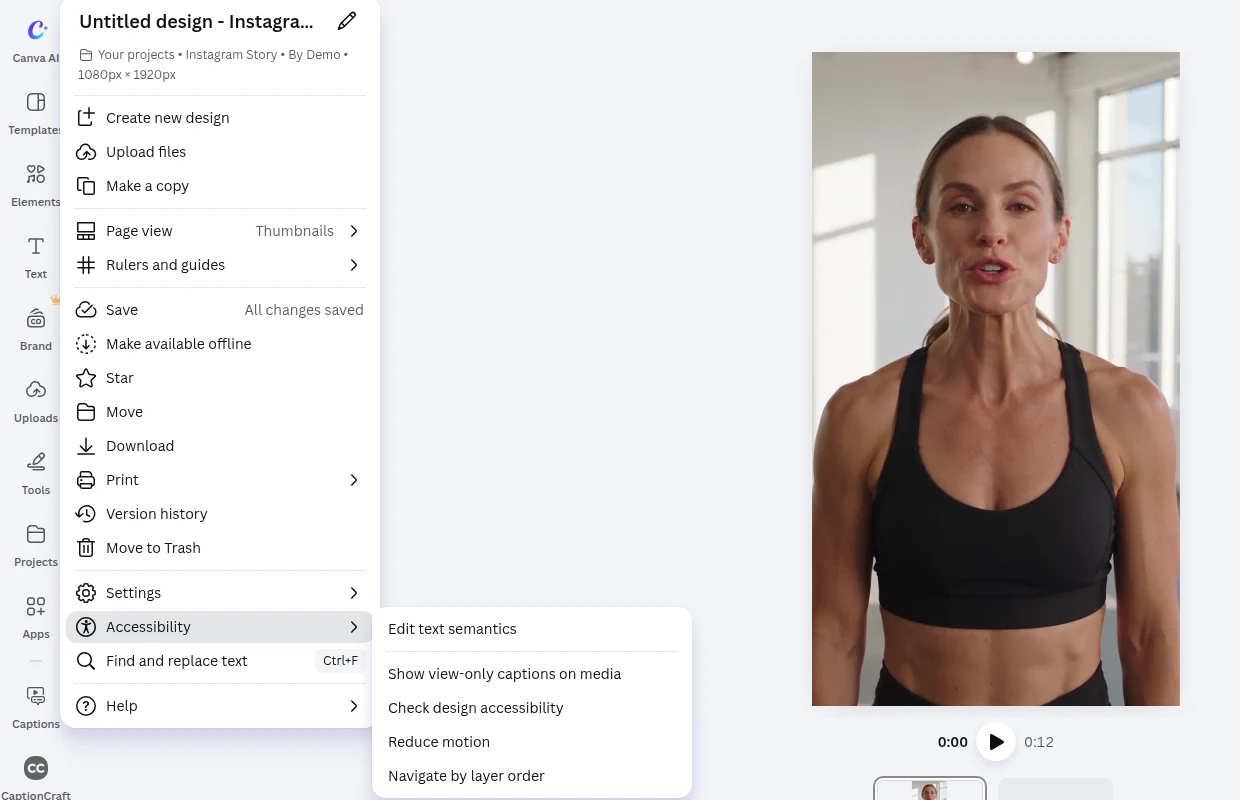
Canva has a second, separate captions feature for accessibility. Under File → Accessibility → Show view-only captions on media, Canva auto-generates captions that viewers see in the editor, in present mode and on view or watch links.
According to Canva's help center, these captions can't be edited and can't be downloaded. If you need subtitles in the MP4 you post on social media, use one of the three methods above instead.
Can you import an SRT subtitle file into Canva?
Not that we could find. Canva's help pages on captions describe generating them, editing them and downloading them with the video, but no way to import an SRT or VTT file, and the Captions panel we used in October 2026 had no import option. If you already have a subtitle file, the practical route in Canva is method 2: open the file in a text editor and copy each line into a timed text box, using its timestamps as a guide.
Going the other way, Canva's caption help pages only describe downloading captions inside the MP4, and CaptionCraft doesn't export subtitle files either: both put the subtitles into the video itself. If a platform needs a separate file, see our Canva vs CapCut captions comparison, or convert an existing file with the SRT to VTT converter.
Make the subtitles easy to read
Whichever method you use, the same few checks make subtitles readable on a phone.
- Keep each subtitle to one short idea, one or two lines.
- Use strong contrast: white text with a dark background or outline works on most footage.
- Keep text clear of the app buttons on vertical video; check a frame with the TikTok safe zone checker or the Instagram Reels safe zone checker.
- Preview once muted: the subtitles alone should carry the message.
Sources
- Generate and animate captions in Canva (Canva Help Center)
- Edit and manage video captions in Canva (Canva Help Center)
- Enable accessibility or view-only captions on videos and audio (Canva Help Center)
Frequently asked questions
Can you get subtitles on Canva?
Yes. Select your video and click Captions, then Generate captions, and Canva adds the subtitles as an editable layer that downloads with the MP4. You can also type subtitles as timed text boxes or use a caption app such as CaptionCraft.
Is adding subtitles in Canva free?
Canva promotes its built-in auto captions as free, and typing subtitles into text boxes uses standard text tools. CaptionCraft is free to install and try, with paid plans for more captioning time.
Why won't Canva add captions to my video?
Canva's help center lists the usual causes: the design isn't a video or supported social media type, the video has no clear speech, or it hasn't finished uploading. Loud music or background noise can also stop captions from generating; lower it, re-upload the video, or add the subtitles as text boxes.
How do I edit all subtitles at once in Canva?
Choosing a style pack in the Captions panel applies it to every subtitle, and Delete all captions removes them all. Other changes, such as font or color from the toolbar, are made caption by caption. In CaptionCraft, the template and style settings always apply to every subtitle.
Can Canva translate subtitles?
Yes. In the Captions panel, choose a language under Translate captions into before you click Generate captions. CaptionCraft doesn't translate; it transcribes the language that is spoken.
Can I upload an SRT file to Canva?
We found no SRT or VTT import in Canva's captions help pages or in the Captions panel (October 2026). Copy the lines into timed text boxes instead.
Create captions directly in Canva
Generate, edit, style, preview, and export video captions with CaptionCraft.
Install CaptionCraft in Canva