Free tool
Subtitle timing shifter
Subtitles that show up too early or too late can be fixed by moving every timestamp by the same amount. Open or paste an SRT or VTT file, enter how many seconds to shift and in which direction, and download the synced file. If the gap grows as the video plays, use two sync points instead.
Updated October 28, 2026 · 6 min read
Subtitles show up before the words are spoken? Make them later. Show up after? Make them earlier.
Shifted SRT
Runs in your browser. Your file never leaves your device.
How to shift subtitle timing
The shifter changes timestamps only. Text, cue numbers and formatting stay exactly as they were, and the file keeps its format: an SRT stays an SRT, a VTT stays a VTT.
- 1
Add your subtitle file
Click Open .srt or .vtt file, or paste the subtitles into the input box. The tool detects the format by itself.
- 2
Measure the offset
Play the video with the subtitles on and pick a clear line. Note when it is spoken and when it appears. The difference is your offset, for example 1.5 seconds.
- 3
Enter the shift
Type the offset in seconds and choose Later if the subtitles come before the speech, or Earlier if they come after it.
- 4
Check and download
The status line shows where the first cue now starts. Download the file (it gets -shifted added to its name) or copy the text, then test it on the video again.
Earlier or later: which way to shift
The direction is the part people get wrong most often, so here it is as a table. A positive shift makes subtitles appear later; a negative one makes them appear earlier.
| What you see | Choose | Example |
|---|---|---|
| The subtitle appears before the line is spoken | Later | 00:00:10,000 becomes 00:00:11,500 with 1.5 s |
| The subtitle appears after the line is spoken | Earlier | 00:00:10,000 becomes 00:00:08,500 with 1.5 s |
| The first lines are fine, later lines are more and more off | Fix drift (2 points) | See the next section |
Constant delay vs drift
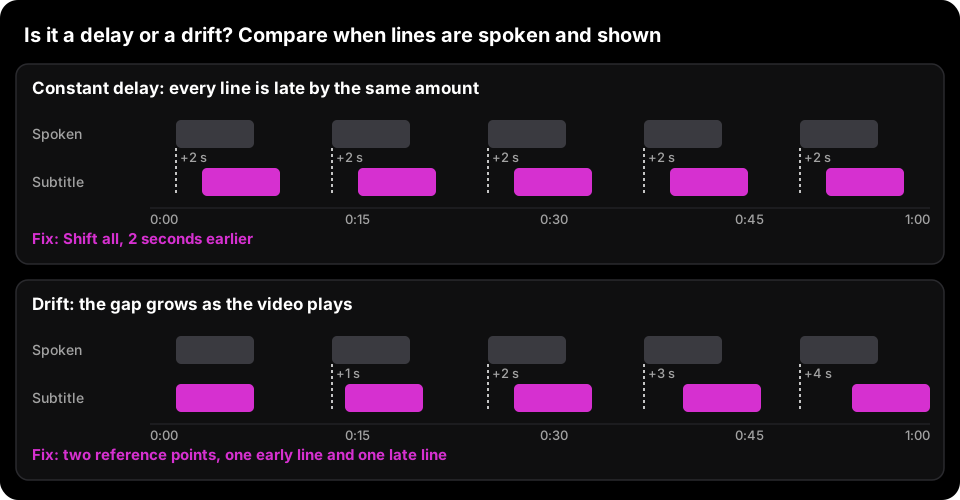
A single shift only works when every line is off by the same amount. That's the usual case after trimming the start of a video, adding an intro, or using subtitles made for a slightly different cut.
When the gap grows as the video plays, the subtitles drift. That typically happens when they were timed for a version of the video with a different frame rate: subtitles timed for a 23.976 fps video run about 4% off against a 25 fps version, which adds up to more than 3.5 minutes over a 90-minute film. No single shift fixes that, because the timing has to be stretched or squeezed too.
Fix drift (2 points) handles both at once. Give it two lines, one near the start and one near the end, with the time each has in the file and the time it is actually spoken. Every timestamp is then moved along the straight line through those two points, so both reference lines land exactly on time and everything between them follows.
- 1
Switch to Fix drift (2 points)
When you open a file, the times of its first and last cue are filled in for you as “time in the file”.
- 2
Find when those lines are spoken
Play the video at each line and type the time you hear it as “when it's spoken”, for example 00:00:04,200 and 01:28:51,000. Any line works; lines far apart give the most precise result.
- 3
Download and test
Check a line in the middle of the video. If it is still off, pick reference lines closer to the start and end.
What the shifter does to your file
Everything runs locally in your browser, following the SRT and WebVTT timestamp formats:
- Moves the start and end time of every cue and keeps the line endings, cue numbers, identifiers and text untouched.
- Keeps SRT timestamps as 00:00:00,000. WebVTT timestamps keep their style: 00:01.000 stays without hours until a time passes one hour.
- Keeps SRT coordinates and WebVTT cue settings (position, line, align) after the end time.
- Also moves the karaoke timestamps inside WebVTT cue text, such as <00:00:04.500>, so word-by-word highlighting stays in sync.
- Leaves NOTE and STYLE blocks alone, even if they contain something that looks like a time.
- Sets times that would fall before 0:00 to 0:00 and tells you how many there were. Cues that end at 0:00 won't be shown, so delete them if that happens.
Subtitles in Canva
In Canva we found no way to import an SRT or VTT file, so a subtitle file isn't something you sync inside a Canva design. Canva's own generated captions are a layer in the timeline: you drag a caption segment's edges to change its timing, as our guide on how to add subtitles in Canva shows.
CaptionCraft transcribes the video itself, lets you adjust the timing of individual words, and renders the captions into the video with animated templates, so there's no separate file to keep in sync. CaptionCraft doesn't create SRT or VTT files.
Sources
Frequently asked questions
How do I fix subtitles that are out of sync?
Measure how far a clear line is off, then shift every timestamp by that amount: later if the subtitle comes too early, earlier if it comes too late. If the gap grows through the video, use two sync points instead.
Should I enter a positive or negative delay?
Positive (Later) when the subtitles appear before the speech, negative (Earlier) when they appear after it. In this tool you type the seconds and pick Earlier or Later.
Why are my subtitles more out of sync toward the end?
That's drift, usually from subtitles timed for a version with a different frame rate or edit. Use Fix drift (2 points) with one line near the start and one near the end.
Can I shift only part of the subtitles?
Not in this tool: it moves every cue. To fix one section, paste just those cues in, shift them, and paste the result back into your file.
Does it work with VTT files?
Yes. It reads SRT and WebVTT and gives you back the same format. To change the format, use the SRT to VTT converter or the VTT to SRT converter.
Is my subtitle file uploaded?
No. The file is read and shifted in your browser and never leaves your device.
Create captions directly in Canva
Generate, edit, style, preview, and export video captions with CaptionCraft.
Install CaptionCraft in Canva