CaptionCraft guide
How to add captions to Instagram Reels
To add captions to an Instagram Reel, select your video in the Reels editor, tap Stickers and choose Captions: Instagram transcribes the audio and puts the text on screen, where you can fix words and change the color and font. You can also turn on Enable closed captions under More options before you share, or caption the video in Canva first so the captions are part of the video itself. This guide covers all three, from Instagram's and Canva's help centers (October 2026), and how to keep captions clear of the Reels buttons.
Updated October 29, 2026 · 6 min read
Three ways to get captions on a Reel
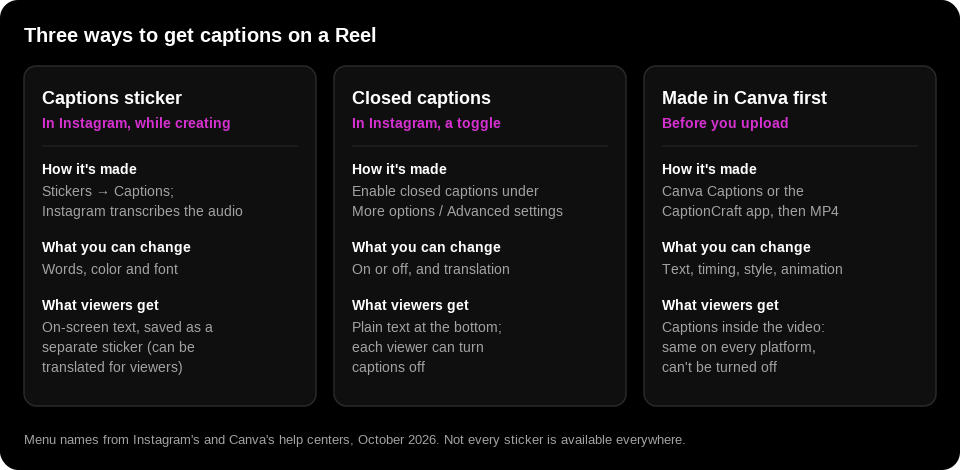
They aren't the same thing. The Captions sticker is on-screen text you edit inside Instagram. Closed captions are automatic text at the bottom that each viewer can switch off. Captions made in Canva before you upload are part of the video's pixels, so they look the same wherever you post it, including TikTok and YouTube Shorts.
| Method | Made in | Styling | Best for |
|---|---|---|---|
| Captions sticker | Instagram app | Text color and font | Quick captions on a Reel you edit in Instagram |
| Closed captions | Instagram app | None; each viewer can switch them off | Accessibility on any Reel with speech |
| Captions made in Canva | Canva, before upload | Style packs or animated templates | Branded or animated captions, posting the same video to several apps |
Method 1: the Instagram Captions sticker
This is what most people mean by captions on Reels. Instagram's help center says not every sticker is available to everyone or for Reels, and its stickers page notes the feature may be unavailable in Japan and in European countries. If you don't see it, update the app first.
- 1
Start a Reel
Tap Create, choose Reel, then record or select a video from your camera roll and tap Next.
- 2
Add the Captions sticker
Tap Stickers at the top of the editor and choose Captions. Instagram transcribes the video's audio automatically.
- 3
Fix the words
Tap the transcript twice, then tap a word to edit it. Check names, numbers and brand terms: they are the usual mistakes.
- 4
Style and place it
Tap the transcript, then the color picker at the top to change the color, or the options at the bottom to change the font. Check that the text sits inside the safe zone (see below), then tap Next and share.
Method 2: turn on closed captions
Closed captions need no styling. Instagram uses speech recognition to write the speech at the bottom of the Reel, and its help center notes that captions may not be available to everyone. Viewers control them: each person can choose Always show or Never show closed captions in their own settings.
- 1
Before sharing
After selecting your video and tapping Next twice, tap More options and switch on Enable closed captions. The Translate closed captions toggle turns on caption translations.
- 2
On a Reel you already posted
Open the Reel from your profile, tap Options, then Edit. Tap More options (Advanced settings on Android) and use the same Enable closed captions toggle.
Instagram's Edits app
Instagram also makes Edits, a separate video editor. In a project, tap Captions, choose the spoken language and a caption style, set transcription controls (punctuation, title case, whether to show curse words) and tap Generate Captions. You can then edit the text, opacity and placement, and drag the ends of a text clip to change how long it stays on screen.
Method 3: caption the Reel in Canva before you post
If you edit your Reels in Canva, add the captions there and upload a finished MP4. You get more control over the look, captions that can't be switched off, and one file that works on Instagram, TikTok and YouTube Shorts.
- 1
Use a 9:16 design
Start from a vertical 1080×1920 design, such as Canva's Instagram Story size, and add your video.
- 2
Generate the captions
Select the video and click Captions in the toolbar, pick a style pack and click Generate captions. Our guide on how to add subtitles in Canva shows each screen. For word-by-word animation, use the CaptionCraft app instead: click Apps, search for CaptionCraft, click Export, then pick one of 16 templates in the Styles tab and click Render, as shown in our Canva auto captions guide.
- 3
Fix the text and timing
Correct the words in Canva's Transcript tab, or in CaptionCraft's Subtitles tab, which lists each caption's start and end time.
- 4
Download and upload
Download the design as an MP4 video, then post it as a Reel. Skip Instagram's Captions sticker so the captions don't appear twice.
Keep captions out of the Reels buttons
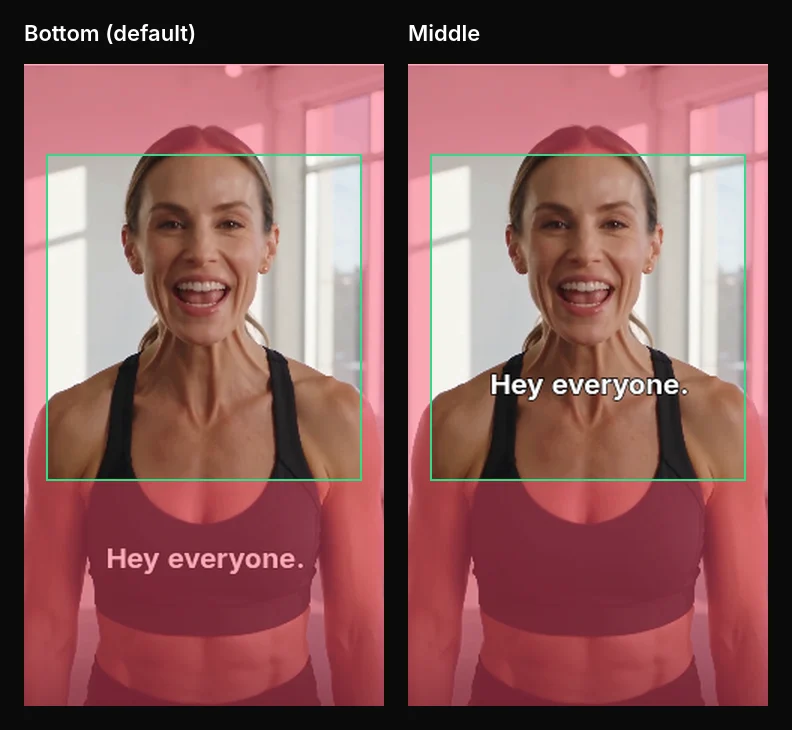
Meta's Reels guidance is to keep at least 14% of the top, 35% of the bottom and 6% of each side free of text and other key elements: on a 1080×1920 video, that's 269, 672 and 65 pixels. Meta says this keeps key elements from being cropped or covered by the interface, such as the profile icon or the call-to-action button.
Traditional subtitles sit low in the frame, which puts them right where the interface is. In CaptionCraft, the default Bottom position put the caption line at about 75–79% of the frame height in our test, inside the covered bottom 35%. Switching to Middle (about 47–54%) moved every caption into the safe area at once. Check your own frame with the Instagram Reels safe zone checker; it runs in your browser without uploading the video.
Make Reel captions easy to read
Whichever method you use, the same checks help on a small screen.
- Keep each caption to a few words, one or two lines.
- Use strong contrast, such as white text with a dark outline or background box; the caption styles gallery shows 16 animated options.
- Fix names and numbers by hand; speech recognition gets them wrong most often.
- Watch the Reel once muted before posting: the captions alone should carry the message.
- Posting the same video to TikTok? Its margins differ, so also run the TikTok safe zone checker.
Sources
- Using stickers on Instagram (Instagram Help Center)
- Manage closed captions for your reels on Instagram (Instagram Help Center)
- Manage reels and video captions on Instagram (Instagram Help Center)
- Add text or captions to your video on Edits (Instagram Help Center)
- Instagram Reels video ads: design recommendations (Meta for Business)
- Generate and animate captions in Canva (Canva Help Center)
Frequently asked questions
How do I insert captions in Reels?
After selecting your video in the Reels editor, tap Stickers and choose Captions. Instagram transcribes the audio; tap the text twice to edit words, and use the color picker and font options to style it.
Why can't I find the Captions sticker on Instagram?
Instagram's help center says not all stickers are available to everyone or for Reels, and the feature may be unavailable in Japan and European countries. Update the app; if it's still missing, turn on closed captions or add captions in an editor such as Canva before uploading.
How do I turn on auto captions for my Reels?
Before sharing, tap More options and switch on Enable closed captions. For a Reel you already posted, open it, tap Options, Edit, then More options (Advanced settings on Android).
What is the difference between captions and subtitles?
On Instagram, closed captions are automatic text that each viewer can turn on or off, while the Captions sticker and captions made in an editor are fixed on-screen text. People often call any on-screen transcript subtitles, especially when it's in another language.
Can I add animated captions to Instagram Reels?
Instagram's Captions sticker lets you change color and font. For word-by-word highlights or karaoke-style captions, caption the video in Canva with an app such as CaptionCraft, download the MP4 and post that.
Where should captions go on a Reel?
Inside the middle of the frame: Meta recommends keeping 14% of the top, 35% of the bottom and 6% of each side free of text. Check a frame with the Instagram Reels safe zone checker.
Create captions directly in Canva
Generate, edit, style, preview, and export video captions with CaptionCraft.
Install CaptionCraft in Canva