CaptionCraft guide
How to make karaoke captions in Canva
Karaoke captions show a full line of text and fill each word with a color the moment it's spoken, like lyrics on a karaoke screen. In Canva, you can get close with the built-in Captions tool and a highlight-style animation, or use a caption app such as CaptionCraft, whose Karaoke and Prompter templates fill words in time with the speech and let you fix the timing of single words. Below: both ways step by step, the settings that matter, and how to keep the effect readable on a phone.
Updated November 6, 2026 · 6 min read
What makes a caption "karaoke"
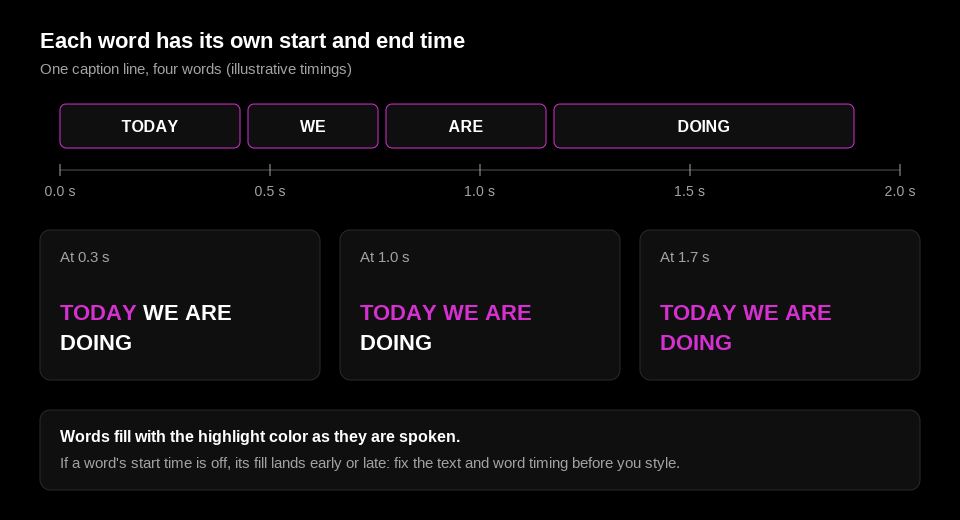
Plain subtitles swap one line for the next. Karaoke captions keep the line on screen and change each word as it's spoken, so the viewer's eye follows the voice. That only works if every word has its own start and end time; with timing for the whole line only, the fill can't land on the right word.
That's why the workflow is: transcribe, correct the words and their timing, then style. If you change a word after styling, check that its highlight still lands when it's spoken.
Option 1: Canva's built-in Captions with a highlight animation
Canva's own Captions tool is free and needs no app. Its help center lists more than 20 caption style packs and caption animations called Reveal, Highlight and Snake, which Canva says it is rolling out gradually, so you may not see all of them yet. Menu names can change; these steps follow Canva's help center as of November 2026.
- 1
Generate captions
Select the video, click Captions in the toolbar, pick a style pack (we saw presets such as Highlighter and Bold Pop) and click Generate captions. Canva detects the spoken language automatically; our guide on Canva auto captions shows each screen.
- 2
Pick a highlight animation
With the captions selected, open Animate and choose a caption animation such as Highlight, if it's available on your account. Our guide on how to animate text in Canva shows the panel.
- 3
Fix words and timing
Edit wrong words in the Captions panel's Transcript tab, or select a caption segment and type. To change when a segment appears, drag its start and end edges in the timeline.
- 4
Change the colors
Picking a style pack applies it to every caption; you can then change a caption's font, color, size and effects from the toolbar.
Option 2: CaptionCraft's Karaoke and Prompter templates
CaptionCraft is a caption app inside the Canva editor (we make it). It transcribes speech in more than 100 languages, lets you adjust the timing of individual words, and renders the video with one of 16 caption templates. Two of them are karaoke-style fills:
- 1
Open CaptionCraft
In your design, click Apps in the left panel, search for CaptionCraft and open it. The design needs a video with speech.
- 2
Export the video
Click Export, keep MP4, choose a quality (480p up to 4K) and wait while CaptionCraft transcribes the speech.
- 3
Correct the words and timing
In the Subtitles tab, each caption shows its start time, end time and text. Fix names and numbers, and adjust the timing of any word whose fill should land earlier or later.
- 4
Choose Karaoke or Prompter
Open the Styles tab and pick the template from the row at the top. Set the Highlight color, then the font, size, outline, shadow and background. Every setting applies to all captions at once, and the live preview shows the result.
- 5
Render and use the video
Click Render (the button shows the video length, e.g. "Render - 12s"), then Add to design to put the captioned video back into Canva, or Download it.
- Karaoke: two lines of capitals that fill with color as each word is spoken.
- Prompter: one teleprompter-style line where spoken words light up.
Karaoke, highlight or one word at a time?
"Karaoke captions" and "word-by-word captions" are often used for three slightly different looks. All three need word timing; they differ in how much text is on screen.
| Look | On screen | Good for | CaptionCraft templates |
|---|---|---|---|
| Karaoke fill | A full line; words fill with color as they're spoken | Talking-head clips, lyrics, read-along | Karaoke, Prompter |
| Word highlight | A full line; only the current word changes color or gets a box | Reels, TikTok and Shorts with fast speech | Highlight, Box, Push, Action, Glow |
| One word at a time | A single word replaces the last | Hooks and punchlines | Smash |
Prompter
A teleprompter-style line where spoken words light up.
Highlight
Bold capitals with the spoken word in yellow; the highlight color can be changed.
Smash
One bold word at a time, for fast, punchy delivery.
Tips for karaoke captions people can read
The fill is a second color moving across the text, so contrast matters twice: the text must stand out from the video, and the filled words must stand out from the unfilled ones.
- Pick a highlight color that clearly differs from the base text, ideally your brand color, and keep it the same across a series.
- Keep lines short. Use the line count and text width settings so viewers can read ahead without the line jumping too often.
- Add an outline, shadow or background when the footage is busy or bright.
- Keep the line clear of the platform's buttons: CaptionCraft's Middle position moves every caption out of the bottom area. Check a frame with the TikTok safe zone checker or the Reels safe zone checker.
- Preview on a phone before you render. All 16 templates are side by side in our caption styles gallery.
Sources
- Generate and animate captions in Canva (Canva Help Center)
- Edit and manage video captions in Canva (Canva Help Center)
Frequently asked questions
What are karaoke captions?
Captions that keep a full line on screen and fill or recolor each word as it's spoken, like lyrics on a karaoke screen. They need a start and end time for every word.
Can Canva make karaoke captions?
Canva's built-in Captions has style packs and caption animations, including one called Highlight that Canva is rolling out gradually. For a karaoke fill with word-level timing you can edit, use a caption app from Canva's marketplace, such as CaptionCraft's Karaoke template.
How do I change the karaoke highlight color?
In CaptionCraft, open the Styles tab: templates that highlight the spoken word have a Highlight color setting, which applies to every caption at once.
Why is my karaoke highlight out of sync?
Usually a word's timing is off. In CaptionCraft, correct the timing of that word in the Subtitles tab, then check the preview again before rendering.
Are karaoke captions the same as word-by-word captions?
Not quite. Karaoke fills words within a full line; word-by-word often means showing one word at a time. Both follow the same word timing.
Create captions directly in Canva
Generate, edit, style, preview, and export video captions with CaptionCraft.
Install CaptionCraft in Canva