CaptionCraft guide
How to add captions on TikTok
To add captions on TikTok, record or upload a video, go to the preview screen and tap Captions on the side panel: TikTok transcribes the speech, and you can edit each line and change the font style and color before you tap Save. TikTok also generates captions automatically for uploaded videos, and its Text tool lets you type captions by hand. This guide covers all of them from TikTok's help center (October 2026), plus captioning the video in Canva before you upload and keeping the text clear of TikTok's buttons.
Updated October 30, 2026 · 7 min read
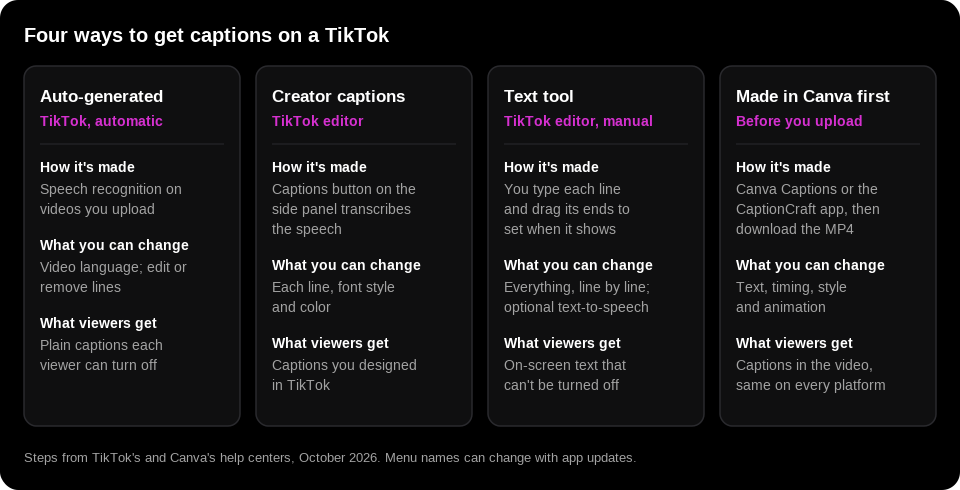
Four ways to get captions on a TikTok
They produce different results. Auto-generated captions are plain text that TikTok adds and each viewer can switch off. Creator captions and the Text tool put text on screen that you edit inside TikTok. Captions made in Canva before upload are part of the video itself, so they look the same on TikTok, Instagram Reels and YouTube Shorts.
One naming trap: on TikTok, the caption is also the post description you type before posting. This guide is about on-screen captions of what's said in the video.
| Method | Made in | Styling | Best for |
|---|---|---|---|
| Auto-generated captions | TikTok, automatically | None; viewers can turn them off | Accessibility on any video with speech |
| Creator captions | TikTok editor | Font style and color | Quick on-screen captions for a video you edit in TikTok |
| Text tool | TikTok editor | Typed and timed by hand | A few short lines, or text with text-to-speech |
| Captions made in Canva | Canva, before upload | Style packs or animated templates | Branded or word-by-word captions, posting one video to several apps |
Method 1: creator captions in the TikTok editor
This is the Captions button most tutorials show. TikTok's help center calls it creator captions: you can edit them and design them, for example by changing the font style and color.
- 1
Start a post
In the TikTok app, tap the Add post + button at the bottom, then record or upload a video and continue to the preview screen.
- 2
Tap Captions
Tap the Captions button on the side panel. TikTok transcribes the speech into text. The first time, you'll be asked to opt in to the feature.
- 3
Check every line
Preview and edit each line. Names, numbers and brand terms are where speech recognition usually slips, so read them carefully.
- 4
Save and post
Tap Save, check the text sits inside the safe zone (see below), then post.
Method 2: auto-generated captions
TikTok's help center says captions are generated automatically for videos you upload, using speech recognition. You don't have to turn anything on, but you can set the language and fix mistakes.
- 1
Pick the caption language
On the post screen, tap More options, then Select video language, and choose the language that's spoken. Eligible videos then show captions in that language.
- 2
Edit or remove them after posting
Open your video, tap the caption, then Edit captions. Change or remove lines and tap Save at the top.
Method 3: type captions with the Text tool
For a short video or a few key lines, typing is fine. From the editing screen, tap Text, enter the line and tap the Continue ✓ button. Hold and drag the arrow on either side of the text below the video track to set how long it stays on screen, and tap Copy to duplicate it for the next line. TikTok's accessibility page adds that you can tap the text and choose Text-to-speech to have it read aloud.
Timing every line by hand gets slow beyond a few sentences. For a full transcript, use creator captions or caption the video before you upload it.
Method 4: caption the video in Canva before you post
If you edit in Canva, add the captions there and upload a finished MP4. The captions are part of the video, so viewers can't switch them off, and you get styles that TikTok's editor doesn't offer, such as word-by-word highlights.
- 1
Use a 9:16 design
Start from a vertical 1080×1920 design, such as Canva's Instagram Story size, the same frame TikTok uses, and add your video.
- 2
Generate the captions
Select the video, click Captions in the toolbar, pick a style pack and click Generate captions; our guide on how to add subtitles in Canva shows each screen. For animated captions, use the CaptionCraft app instead: click Apps, search for CaptionCraft, click Export, then pick one of 16 templates in the Styles tab and click Render, as shown in our Canva auto captions guide.
- 3
Fix the text and timing
Correct the words in Canva's Transcript tab, or in CaptionCraft's Subtitles tab, which lists each caption's start and end time.
- 4
Download and upload
Download the MP4, upload it to TikTok and skip the Captions button, so the captions don't appear twice. TikTok still generates auto-captions for uploads; if they clash with yours, remove them with Edit captions after posting.
Keep captions clear of TikTok's buttons
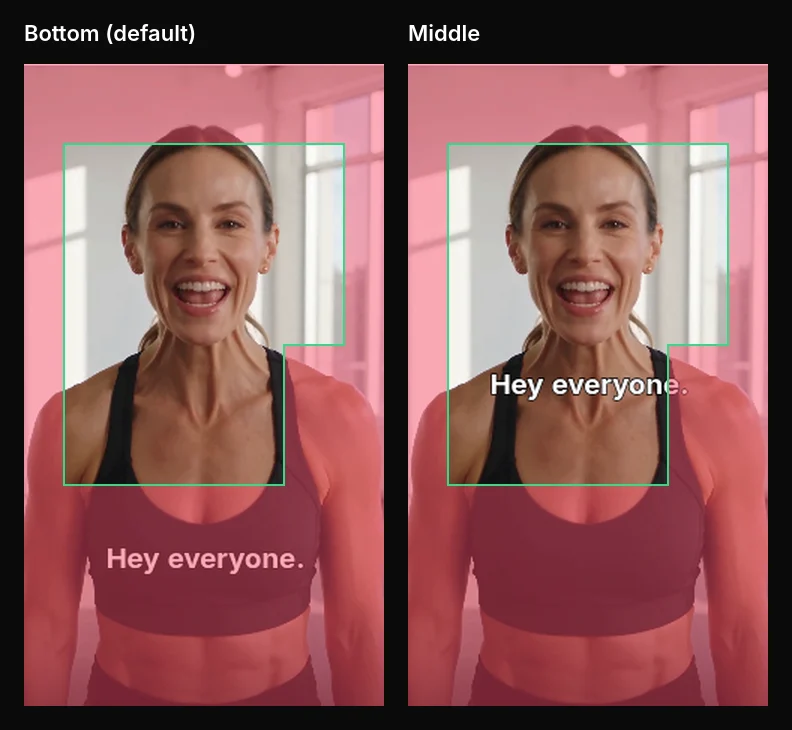
TikTok's ad specs keep 240 px clear at the top, 660 px at the bottom and 120 px on each side of a 1080×1920 video, plus a 180 px column on the right from 840 px down, where the like, comment and share buttons sit. Regular posts aren't covered by those specs, but the layout is similar: the username and post description fill the bottom of the screen.
That's exactly where traditional subtitles go. In CaptionCraft, the default Bottom position put the caption line at about 75–79% of the frame height in our test, inside TikTok's bottom margin. Middle (about 47–54%) cleared it for every caption at once, though a wide line still touched the button column, so keep lines short too. Check a frame or your finished video with the TikTok safe zone checker; it runs in your browser and uploads nothing.
Make TikTok captions easy to read
Whichever method you use, the same checks help on a phone screen.
- Keep each caption to a few words on one or two lines.
- Use strong contrast, such as white text with an outline or a dark background box; the caption styles gallery shows 16 animated options.
- Fix names and numbers by hand before posting.
- Watch the video once with the sound off: the captions alone should carry the message.
- Posting the same video as a Reel? See how to add captions to Instagram Reels: Instagram's covered areas differ from TikTok's.
Sources
- Accessibility for your videos (TikTok Help Center)
- Accessibility for watching videos (TikTok Help Center)
- Editing TikTok videos and photos (TikTok Help Center)
- TikTok Auction In-Feed Ads (TikTok Ads Manager)
- Generate and animate captions in Canva (Canva Help Center)
Frequently asked questions
How do I put captions on my TikTok?
Record or upload a video, go to the preview screen and tap Captions on the side panel. TikTok transcribes the speech; edit each line, change the font style or color if you like, and tap Save.
How do I turn on auto captions on TikTok?
TikTok generates captions automatically for uploaded videos with speech. To choose their language, tap More options on the post screen, then Select video language.
How do I edit TikTok captions after posting?
Open your video, tap the caption, then tap Edit captions. Change or remove lines and tap Save at the top.
Why don't viewers see my TikTok captions?
Auto-generated captions can be switched off: viewers tap Share, then Captions, and turn Show captions on or off. Captions made with the Text tool or burned into the video in an editor can't be turned off.
Can I add animated or word-by-word captions to TikTok?
TikTok's creator captions let you change the font style and color. For word-by-word highlights or karaoke-style captions, caption the video in Canva with an app such as CaptionCraft, download the MP4 and post that.
Where should captions go on a TikTok video?
Around the middle of the frame, away from the right edge: TikTok's specs keep the bottom 660 px of a 1080×1920 video and a button column on the right clear. Check a frame with the TikTok safe zone checker.
Create captions directly in Canva
Generate, edit, style, preview, and export video captions with CaptionCraft.
Install CaptionCraft in Canva