Free tool
SRT editor
Open or paste an SRT or VTT file and every subtitle becomes an editable row: change the text, type new start and end times, split, merge, add or delete lines, then download a clean file. Open the video too and you can play each line and set its timing from the player. Everything runs in your browser, so neither file is uploaded.
Updated November 10, 2026 · 5 min read
Runs in your browser. Your files never leave your device.
How to edit an SRT file
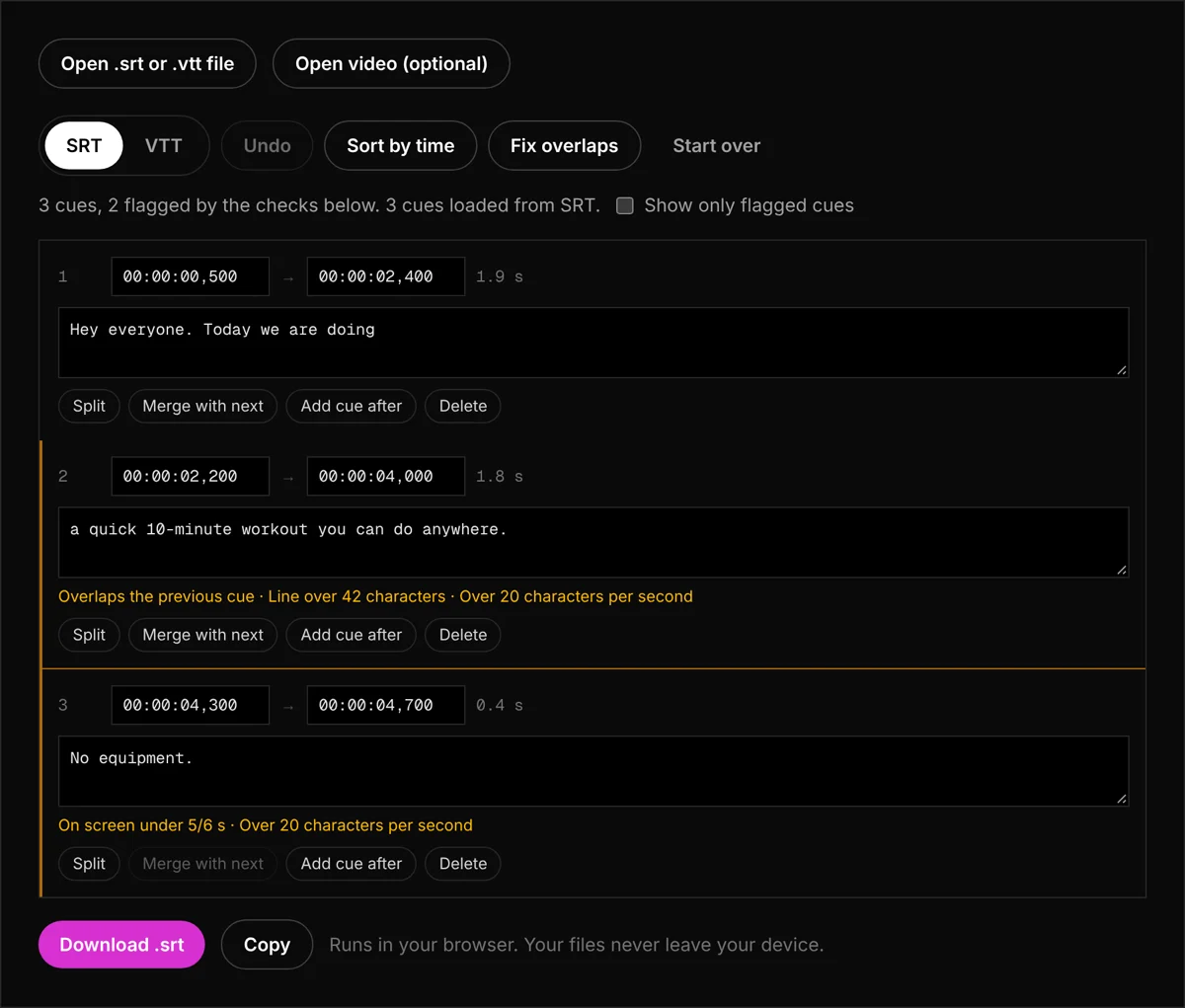
The editor shows one row per subtitle (a cue): its number, start time, end time, how long it stays on screen, and its text.
- 1
Open your subtitles
Click Open .srt or .vtt file, or paste the subtitles and click Edit these subtitles. Try a sample loads three short lines with typical problems, so you can see what the checks flag.
- 2
Fix the text
Type in any row. A line break in the box becomes a line break on screen. Tags such as <i> stay as you type them.
- 3
Fix the timing
Click a start or end time, type the new one and press Enter. You can type 00:00:04,500, 00:04.5 or just 4.5 (seconds). Split, Merge with next, Add cue after and Delete reshape the list; Undo reverses the last of those.
- 4
Check against the video (optional)
Click Open video and pick the video file. The current line appears over the player and its row is highlighted. Play jumps to a line; Start = video time and End = video time copy the player's position into that line.
- 5
Download
Pick SRT or VTT and click Download. The file keeps your original name with -edited added.
What the checks flag
Each row is checked as you edit. The limits come from Netflix's public timed text style guides for US English. They are warnings, not errors: short social-video captions often use shorter lines on purpose, and the file downloads either way.
| Check | Flagged when | Why it matters |
|---|---|---|
| Overlap | A line starts before the previous one ends | Both lines are on screen at the same time. Fix overlaps ends each line where the next begins |
| Ends before it starts | End time is at or before the start time | The line never shows |
| Reading speed | Over 20 characters per second (Netflix: 17 for children's programs) | Viewers can't finish reading before it disappears |
| Line length | A line over 42 characters | Long lines are hard to read and may wrap |
| Line count | More than 2 lines | Covers too much of the picture |
| Duration | Under 5/6 of a second or over 7 seconds | Too short to read, or lingering after the speech |
- Reading speed counts the characters you see, spaces included, divided by the seconds on screen. Tags don't count.
- To fix a fast line, make it shorter, give it more time, or split it into two lines with Split, which cuts at the word nearest the middle and shares the time by length.
- Show only flagged cues hides the rest, which helps in a long file.
What an SRT file looks like
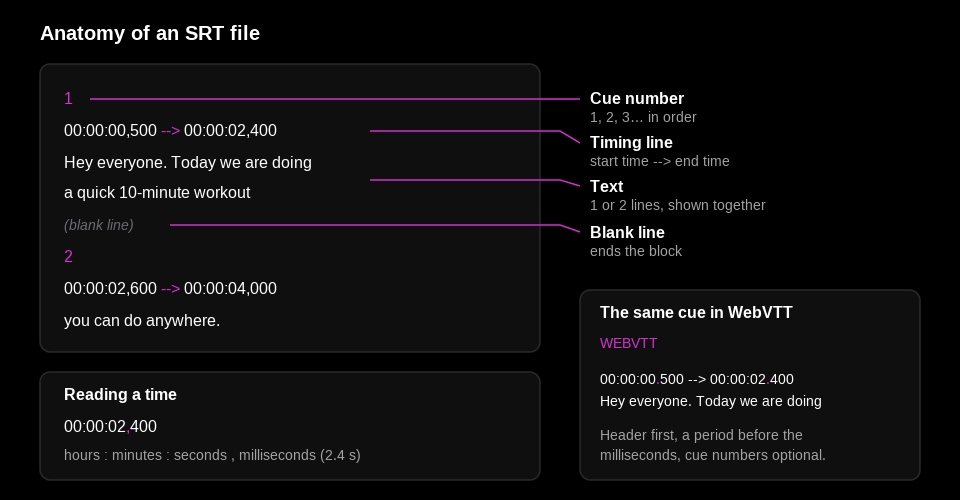
SRT (SubRip) is plain text, so you can also open it in Notepad or TextEdit. Each subtitle is a block: a number, a timing line with a start and end time separated by -->, one or more lines of text, then a blank line. WebVTT looks almost the same, with a WEBVTT header and a period instead of a comma before the milliseconds.
Editing by hand works for a typo, but bigger edits are where files break: a missing blank line merges two subtitles into one block, a mistyped arrow or time makes the timing line invalid, and the numbers go out of order when you add a line. The editor writes those parts for you.
What the editor does to your file
Everything happens locally in your browser. When you download:
- SRT files are renumbered from 1, with times written as 00:00:00,000. Screen coordinates after an SRT end time are not kept.
- VTT files keep their cue identifiers, cue settings (position, line, align) and STYLE and REGION blocks. NOTE comments are not kept, and the editor tells you how many it found.
- Switching to SRT removes WebVTT-only tags such as <v> and <c> and karaoke timestamps, and keeps <b>, <i> and <u>. Switching to VTT removes <font> tags and escapes & and < characters.
- Blocks without a valid timing line are skipped, and the status line tells you how many.
- Lines stay in the order you leave them. Sort by time puts them in start-time order.
Other subtitle fixes
If every line is off by the same amount, or the gap grows through the video, the subtitle timing shifter moves all timestamps at once instead of row by row. To change only the format, use the SRT to VTT converter or the VTT to SRT converter. For the words without timing, the SRT to TXT converter gives you a plain transcript.
Captions for a video edited in Canva don't need a subtitle file. Canva's own captions are edited inside the design, as our guide on how to edit captions in Canva shows, and CaptionCraft transcribes the video and renders the captions into it with animated templates. CaptionCraft doesn't create SRT or VTT files.
Sources
- English (USA) Timed Text Style Guide (Netflix Partner Help Center)
- Timed Text Style Guide: General Requirements (Netflix Partner Help Center)
- WebVTT: The Web Video Text Tracks Format (W3C)
Frequently asked questions
How do I edit an SRT file?
Open it in this editor, or in any text editor since SRT is plain text. Change the text or the times, keep the number, timing line and blank line of each block intact, and save it with the .srt extension.
How do I change the timing of one subtitle?
Click its start or end time and type the new time, such as 00:01:02,500 or 62.5. With the video open, play to the right moment and click Start = video time or End = video time.
How do I shift all subtitles at once?
Use the subtitle timing shifter. It moves every timestamp by the same amount, or stretches them between two sync points when the gap grows.
What is a good reading speed for subtitles?
Netflix's US English style guide allows up to 20 characters per second for adult programs and 17 for children's programs, with at most 42 characters per line and 2 lines.
Can I edit VTT files too?
Yes. The editor reads SRT and WebVTT and can save either format, so you can also convert while you edit.
Is my video or subtitle file uploaded?
No. Both are opened in your browser and never leave your device. The video is only used for the preview.
Create captions directly in Canva
Generate, edit, style, preview, and export video captions with CaptionCraft.
Install CaptionCraft in Canva