CaptionCraft guide
How to edit captions in Canva
To edit captions in Canva, click the captions on your video once (that selects all of them), then click Captions in the toolbar: the Transcript tab lets you retype any line, and the Styles tab restyles every caption at once. To change when a caption appears, drag the start or end edge of its segment in the timeline. We tested each step in the editor in November 2026, including the part that trips people up: which edits change every caption and which change one line.
Updated November 23, 2026 · 6 min read
Fix the words in the Transcript tab
These steps are for captions made with Canva's Captions tool (Canva calls them Editable Captions). If you haven't generated them yet, start with our guide to Canva auto captions. Menu names can change; these match the editor as we saw it in November 2026.
- 1
Select the captions
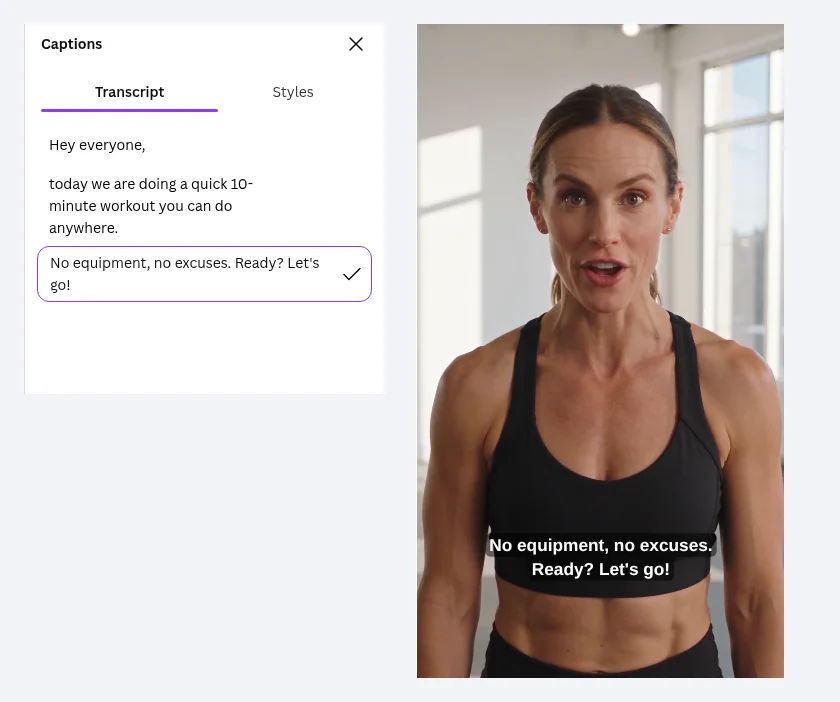
Click the captions on the canvas once. The toolbar now starts with a Captions button, followed by the font, size and color controls.
- 2
Open the Captions panel
Click Captions in the toolbar. The panel has two tabs, Transcript and Styles, and a Delete all captions button.
- 3
Edit a line
In the Transcript tab, click the line you want to fix and type. The caption on the video updates as you type; click the check mark to finish.
- 4
Remove a line you don't need
To delete a single line, hover over it in the Transcript tab and click the Delete icon (per Canva's help center).
How to edit all captions at once
You don't need to change captions one by one, and you don't need Shift-click to select them all. One click on the captions selects the whole caption track: on our demo, the toolbar started with Captions, the selection box framed every caption, and changing the background color under Effects changed every line, not just the one on screen. A text color change made the same way also applied to all of them.
For a bigger change, open Captions in the toolbar and switch to the Styles tab. Picking a style pack there restyles every caption at once. Two things to know before you do it:
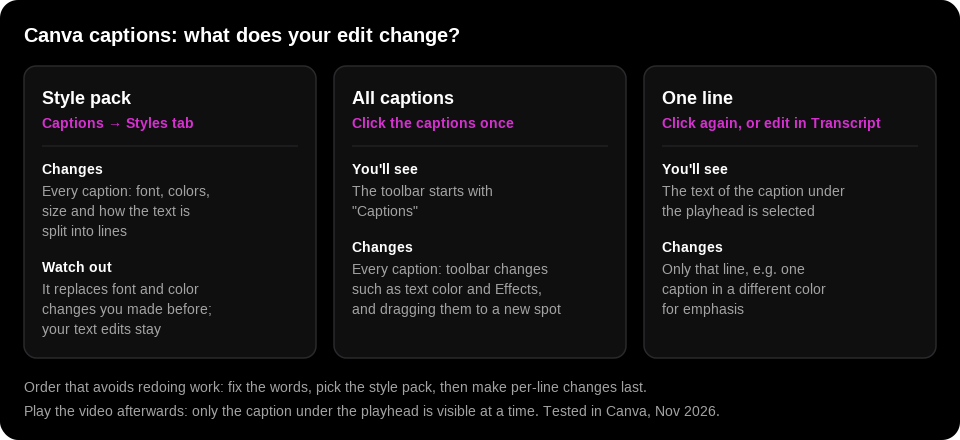
- A style pack replaces your earlier font and color changes. When we picked Bold Pop after changing the background to yellow, the yellow disappeared; switching back to Classic reset everything again. Your text corrections stayed.
- Some packs change how the text is split. Bold Pop shows one word at a time, and the Transcript tab then listed one word per line; back on Classic it showed our three original lines.
- To move all captions, drag them to a new spot. Canva's help center notes you repeat this on each page where you want a different position.
Change one caption without touching the others
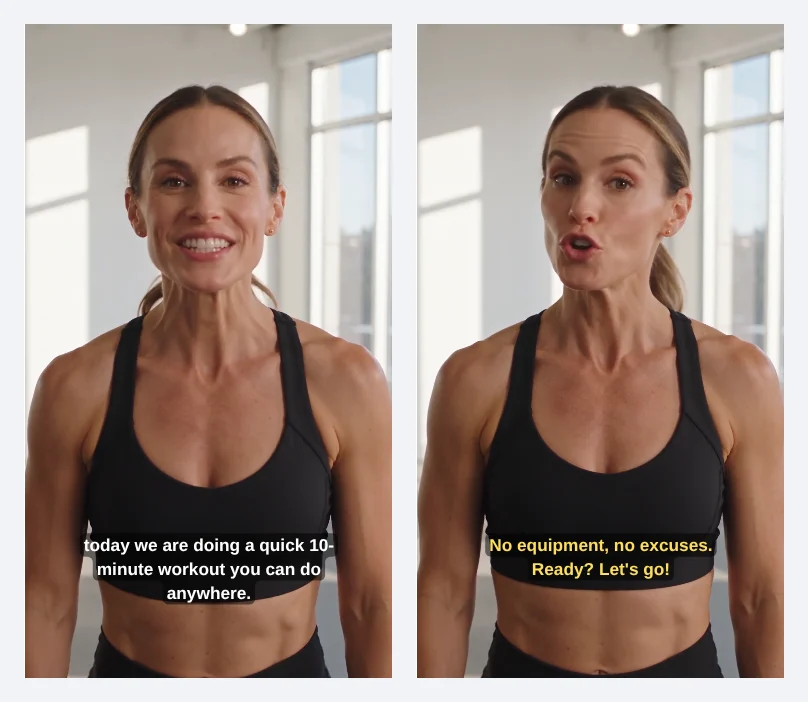
Sometimes you want one line to stand out, such as a call to action in a different color. Click the already selected captions a second time: Canva selects the text of the caption under the playhead, and toolbar changes now apply to that line only. The same happened right after we edited a line in the Transcript tab: the next color change went only to that line.
If a change you meant for every caption only shows on one line, that's usually why. Click an empty spot outside the page to deselect, then click the captions once and make the change again. And because a style pack overrides per-line changes, make them last.
Fix caption timing
Canva's captions sit on their own layer in the video timeline. According to Canva's help center, you change timing by selecting a caption segment and dragging its start and end edges to set how long it stays on screen.
If captions are out of sync after you trim the video, Canva suggests playing it in the editor, dragging the edges of the segment that's off, and previewing again. Captions on an audio file only appear in the timeline view.
If every caption is off by the same amount in an SRT or VTT file you made elsewhere, our free subtitle shifter moves all timestamps at once in the browser.
Delete captions or start over
Delete all captions, at the bottom of the Captions panel, removes the captions from every video in the design. To remove the captions of just one video, select them and click Delete in the floating toolbar. To regenerate, delete them and use Generate captions again; if they came out in the wrong language, check the spoken-language setting first, as our guide on captions in the wrong language explains.
No Edit button or Apply to all? Why you can't edit captions
If the options above don't show up, check these in order:
- No Captions button in the toolbar: they're probably view-only accessibility captions, turned on under File → Accessibility. Canva's help center says those can't be edited or downloaded. Our guide on adding subtitles in Canva explains the difference. To get editable captions, generate them with Canva's auto captions tool.
- Looking for Apply to all: we didn't need one. One click on the captions already selects the whole caption track, and font, color and effect changes then go to every line. A style pack in the Styles tab also changes every caption.
- A change only reached one line: you had a single caption selected, after a second click or a Transcript edit. Click outside the page, click the captions once, and make the change again.
- Captions on an audio file: Canva's help center says they only appear in the video timeline, not on the page, so edit them there.
Editing captions in CaptionCraft
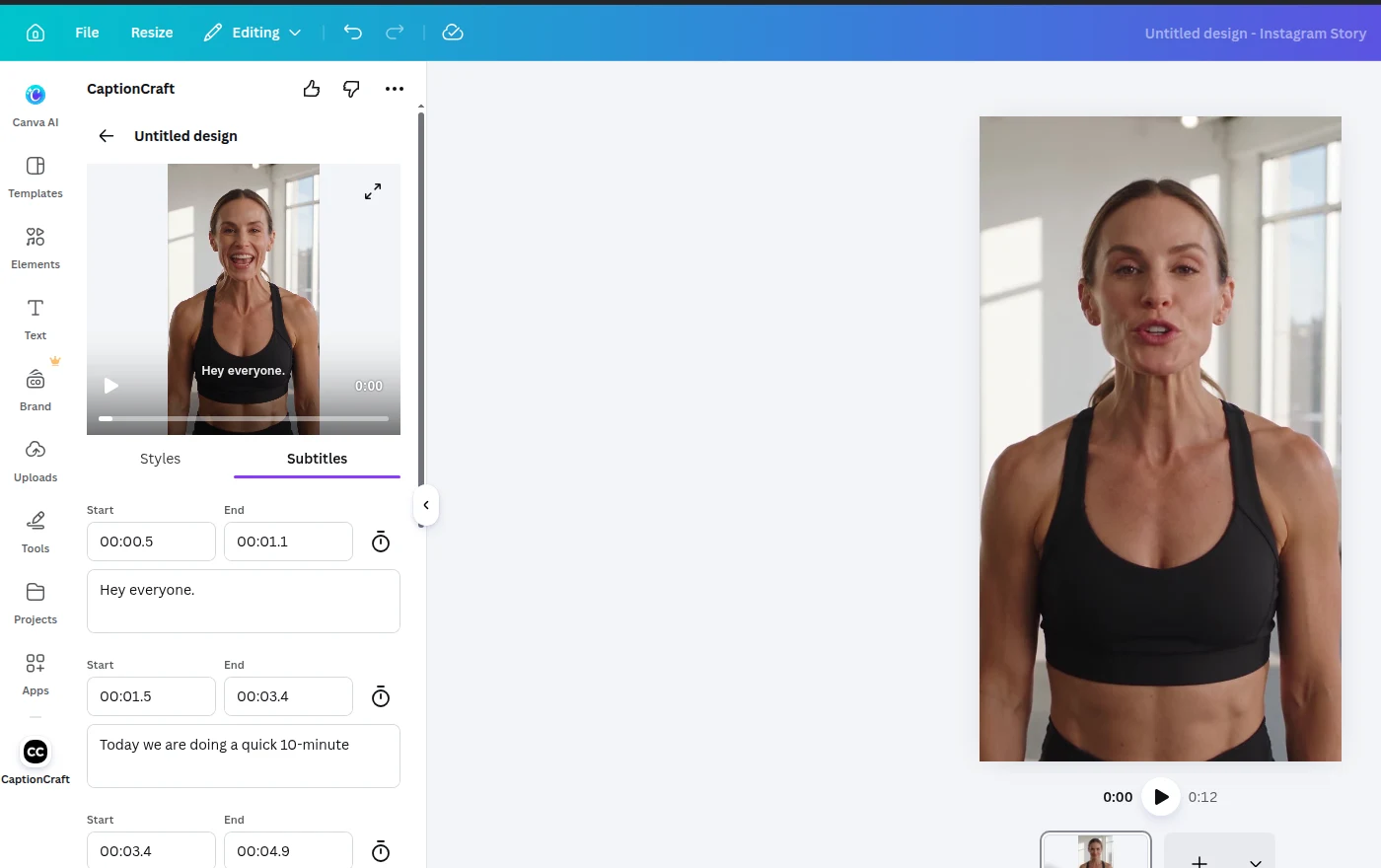
CaptionCraft is a caption app inside the Canva editor (we make it). It works differently: you export the video from the app, it transcribes the speech, and you edit before rendering a new captioned video.
- 1
Fix text and timing in the Subtitles tab
The Subtitles tab lists each caption with its start time, end time and text. Change the text, and adjust the timing of individual words when a word-by-word highlight should land earlier or later.
- 2
Style everything once in the Styles tab
Pick one of 16 templates, then set the font, color, highlight color, outline, shadow, background, position and size. Style settings apply to every caption in the video at once, so there's no per-line selection to get wrong.
- 3
Render
Click Render, then Add to design to put the captioned video back into Canva, or Download it.
Sources
- Edit and manage video captions in Canva (Canva Help Center)
- Generate and animate captions in Canva (Canva Help Center)
- Enable accessibility or view-only captions on videos and audio (Canva Help Center)
Frequently asked questions
How do I edit all captions at once in Canva?
Click the captions on the canvas once to select the whole caption track, then change the font, color or effects in the toolbar. To restyle everything, click Captions in the toolbar and pick a style pack in the Styles tab, which applies to all captions.
How do I select all captions in Canva?
Click any caption once. Canva selects the whole caption track, and the toolbar starts with a Captions button. Clicking a second time selects just the caption under the playhead.
Why did my caption changes disappear?
Picking a style pack in the Styles tab replaces earlier font and color changes. Choose the style pack first, then make your own changes.
Why does my color change only show on one caption?
You probably had a single line selected, after clicking the captions twice or editing a line in the Transcript tab. Click outside the page to deselect, then click the captions once and change the color again.
How do I change caption timing in Canva?
Select a caption segment in the video timeline and drag its start or end edge, according to Canva's help center. Preview the video afterwards to check the sync.
Is there an Apply to all button for Canva captions?
You don't need one. Clicking the captions once selects the whole caption track, so toolbar changes to font, color and effects apply to every caption. Picking a style pack in the Styles tab also restyles all of them.
How do I remove captions in Canva?
Open Captions in the toolbar and click Delete all captions to remove them from every video in the design. To delete one line, hover over it in the Transcript tab and click the Delete icon.
Why can't I edit my captions in Canva?
They may be view-only accessibility captions, which can't be edited or downloaded. Only captions made with Canva's Captions tool can be edited.
Create captions directly in Canva
Generate, edit, style, preview, and export video captions with CaptionCraft.
Install CaptionCraft in Canva