CaptionCraft guide
What is an SRT file? Format, example and how to make one
An SRT file is a plain-text subtitle file. It lists the captions of a video as numbered blocks, each with a start time, an end time and one or two lines of text, and a video player or platform shows each line at the right moment. Below: the format line by line, a real example, how to write one in Notepad or TextEdit, the six mistakes that break most files, and how SRT differs from VTT.
Updated November 12, 2026 · 7 min read
The short answer
SRT stands for SubRip Subtitle, after SubRip, a program that copied subtitles off DVDs into text files with the .srt extension. The Library of Congress describes it as a text-based format that is played alongside the video or audio: the file holds only the words and their timings, never the video itself.
Because it's plain text, anyone can open and edit an SRT file, and YouTube suggests SubRip as a format to start with if you're new to caption files. That simplicity is also its weakness: there's no official specification, and the Library of Congress notes that the format is "not well standardized", so small mistakes can make a file fail on one platform and work on another.
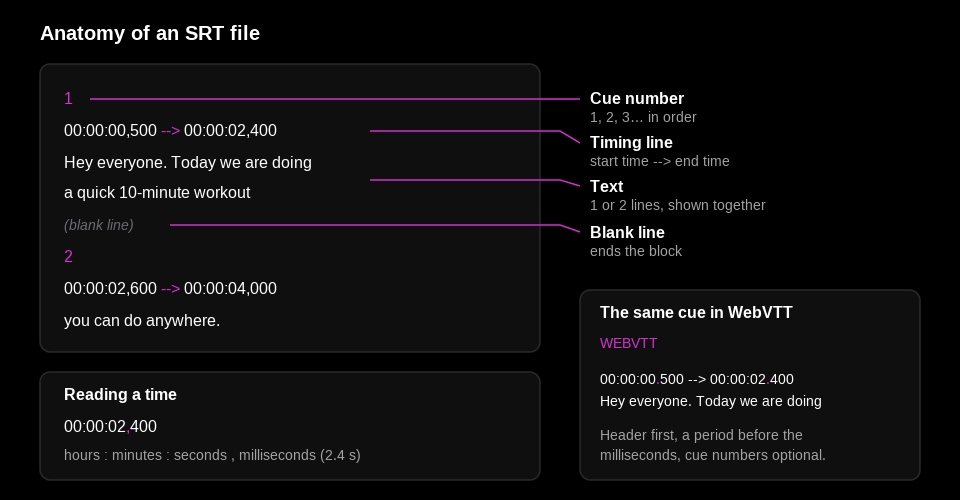
SRT file example, line by line
Here are two blocks from a real SRT file, as you'd see them in a text editor, with what each line does:
| Line in the file | What it is |
|---|---|
| 1 | Cue number: 1, 2, 3… in order |
| 00:00:00,500 --> 00:00:02,400 | Timing line: shown from 0.5 s to 2.4 s |
| Hey everyone. Today we are doing | Text, first line |
| a quick 10-minute workout | Text, second line, shown at the same time |
| (empty line) | Ends the block |
| 2 | Next cue number |
| 00:00:02,600 --> 00:00:04,000 | Timing line of the second caption |
| you can do anywhere. | Text |
The SRT format rules
These are the rules the Library of Congress and YouTube's help center describe, plus what to keep in mind where they leave gaps:
- Numbers count up from 1, one per caption.
- Times are written hours:minutes:seconds,milliseconds, as in 00:01:05,250, with a comma before the milliseconds and all four parts present.
- The arrow between start and end is two hyphens and a greater-than sign: -->.
- The text can run over more than one line; keep it to two short lines so it's readable. Netflix's English style guide, for example, allows 42 characters per line and two lines at most.
- A blank line ends each block. Without it, a program may read the next number and timing line as part of the text.
- Save it as plain text. YouTube says SRT files must be plain UTF-8 and that it ignores style markup; SubRip itself allows a few HTML-like tags (bold, italic, underline, color), but whether they show depends on the player.
- To play it next to a video file, give it the same name: my-video.mp4 and my-video.srt.
How to make an SRT file
You need the words of the video and when each line is spoken. If a platform already made automatic captions, start from those: YouTube Studio lets you download subtitles from a video's Subtitles page (Options → Download subtitles), and editing that file is faster than typing from scratch. To write one yourself:
- 1
Open a plain-text editor
Notepad on Windows, or TextEdit on a Mac after choosing Format → Make Plain Text in a new document (Apple's TextEdit guide). Word processors add formatting that breaks the file.
- 2
Type the first block
The number 1, then the timing line, such as 00:00:00,500 --> 00:00:02,400, then the words spoken in that time, on one or two lines.
- 3
Leave a blank line and repeat
Play the video, note when each line starts and ends, and add a block for each caption, numbering them in order.
- 4
Save as UTF-8 with the .srt extension
In Notepad's Save As dialog, set Save as type to All files and Encoding to UTF-8, and name the file my-video.srt. Make sure your editor didn't add .txt to the end.
- 5
Check it before you upload
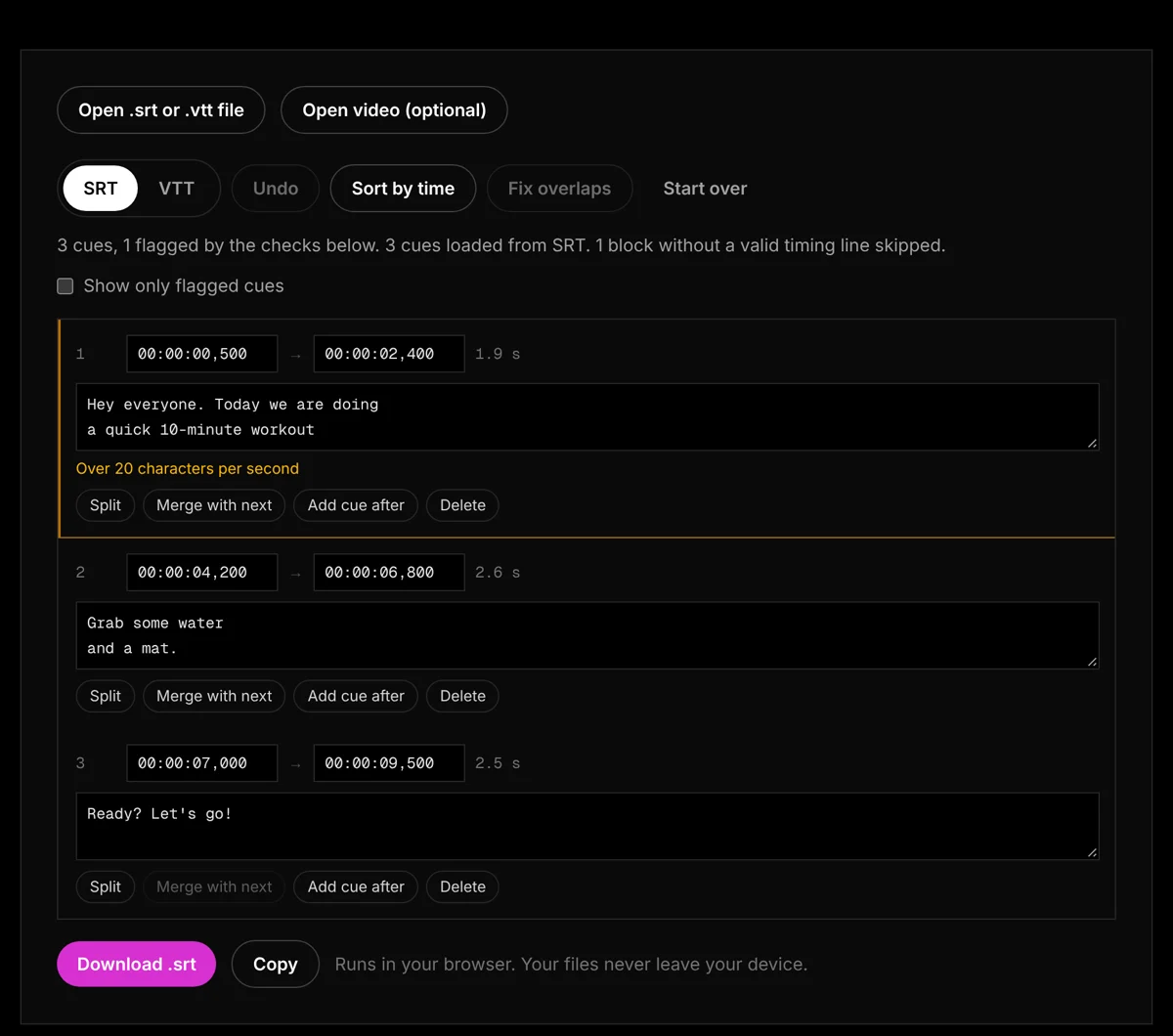
Open the file in our free SRT editor. It runs in your browser, tells you how many blocks it skipped because their timing line is invalid, flags overlaps and lines too long or fast to read, and lets you set each start and end time while your video plays.
Six mistakes that break SRT files
When a platform rejects an SRT file or shows it wrong, check these first. Our editor is forgiving (it accepts a period or a comma before the milliseconds, and it writes a clean SRT back out), but the platform you upload to may not be.
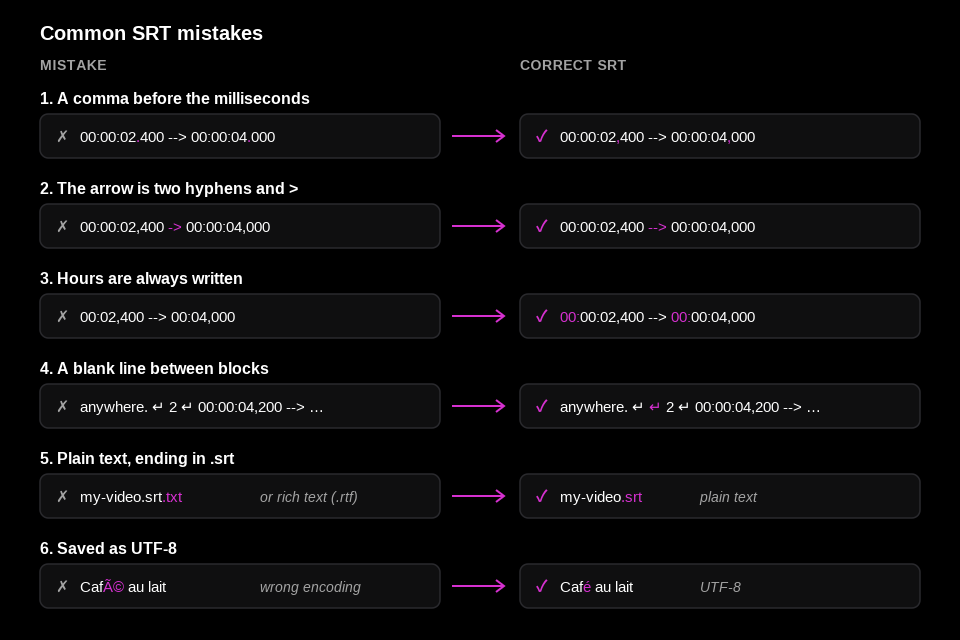
- A period instead of a comma before the milliseconds: that's the WebVTT style. To turn a VTT file into SRT properly, use the VTT to SRT converter.
- Garbled accents (é instead of é) mean the file was saved in another encoding: open it, then save it again as UTF-8.
- Captions that are all late or early by the same amount aren't a format error: shift every time at once with the subtitle timing shifter.
How to open an SRT file
Double-click it and choose a text editor (Notepad or TextEdit) to read or change it. To watch it with a video on your computer, put the SRT in the same folder as the video with the same file name, so the player can pair them.
To publish it, upload it as a caption track: in YouTube Studio, open Subtitles, pick the video and language, then Upload file and choose With timing. Our YouTube Shorts captions guide walks through the screens. To turn it into a plain transcript for a document, paste it into the SRT to TXT converter, which removes the numbers and timestamps.
SRT vs VTT
WebVTT (.vtt) was built on SRT, so the two look almost the same. The differences that matter (our VTT file guide covers the WebVTT side in full):
| SRT (.srt) | WebVTT (.vtt) | |
|---|---|---|
| First line | The first cue number | WEBVTT |
| Milliseconds | After a comma: 00:00:02,400 | After a period: 00:00:02.400 |
| Cue numbers | Expected | Optional identifiers |
| Position and styling | A few tags, depending on the player | Cue settings (position, alignment) and styles |
| Website <track> captions | Not accepted | The format browsers expect |
- Use SRT for uploads to social and video platforms that ask for it, and VTT for captions on your own website's video player.
- Switch between them without retyping anything with the SRT to VTT converter.
SRT files and Canva
Canva's captions and the CaptionCraft app both put the captions into the video itself, as open captions, rather than into a separate SRT file, and we found no option to import an SRT into Canva's Captions panel. If you have a subtitle file and want it in a Canva video, our guide to adding subtitles in Canva shows the workaround with timed text boxes.
Not sure whether you need a file at all? Open vs closed captions explains when a burned-in caption beats an SRT track, for example on social feeds where videos autoplay and get reposted.
Sources
- SubRip Subtitle format (SRT) (Library of Congress)
- Supported subtitle and closed caption files (YouTube Help)
- Add subtitles & captions (YouTube Help)
- Edit or remove captions (YouTube Help)
- Web Video Text Tracks Format (WebVTT) (MDN Web Docs)
- <track>: The Embed Text Track element (MDN Web Docs)
- Work with HTML documents in TextEdit on Mac (Apple Support)
- English (USA) Timed Text Style Guide (Netflix Partner Help Center)
Frequently asked questions
What is an SRT file used for?
It stores a video's subtitles or captions with their timings, so a player or platform can show them as closed captions that viewers turn on or off.
Does an SRT file contain the video?
No. It only holds text and timings, so it's tiny. You keep it next to the video or upload it to the same platform.
How do I open an SRT file?
Open it with any plain-text editor, such as Notepad or TextEdit. To see it on screen with the video, give it the same name as the video file and keep both in one folder, or upload it as a caption track.
Which is better, SRT or VTT?
Neither in general: SRT is the simpler, widely accepted upload format, while VTT is what browsers use for website video captions and supports positioning. Convert between them as needed.
How do I convert an SRT file to Word?
Paste it into the SRT to TXT converter to strip the numbers and timestamps, then paste the text into Word or Google Docs.
Can I edit an SRT file?
Yes. Change the text in any plain-text editor, or use the SRT editor to retime, split or merge lines and catch overlaps before saving.
Create captions directly in Canva
Generate, edit, style, preview, and export video captions with CaptionCraft.
Install CaptionCraft in Canva