Free tool
VTT to TXT converter
Open or paste a WebVTT (.vtt) file and get plain text back: the WEBVTT header, cue identifiers, timing lines, cue settings and tags are removed, and only the spoken words stay. Speaker names from meeting transcripts are kept, repeated lines from scrolling auto-captions are dropped, and you can download a .txt file or copy the text into Word. Nothing is uploaded.
Updated November 16, 2026 · 5 min read
Plain text (TXT)
Runs in your browser. Your file never leaves your device.
How to convert VTT to TXT
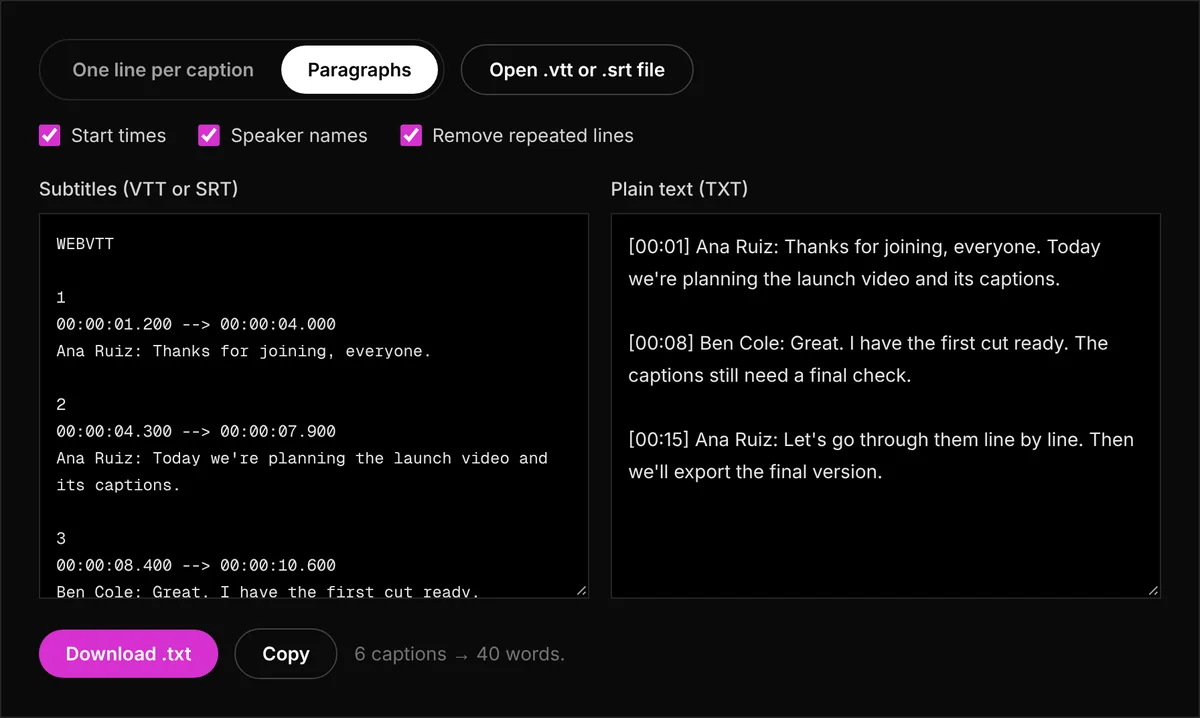
The converter reads every cue in the file, keeps its words and drops the WebVTT code around them.
- 1
Add your VTT file
Click Open .vtt or .srt file, or paste the file's contents into the input box. WebVTT and SRT are both detected automatically.
- 2
Pick a layout
Paragraphs joins the cues into running text and starts a new paragraph when the speaker changes or after a pause of two seconds or more. One line per caption keeps each cue on its own line.
- 3
Choose what to keep
Speaker names and Remove repeated lines are on by default. Turn on Start times to put a time like [12:05] before each line or paragraph.
- 4
Download or copy
The status line shows how many captions and words were converted. Download the .txt file, which keeps your file's name, or copy the text into a document.
What's in a VTT file, and what the TXT keeps
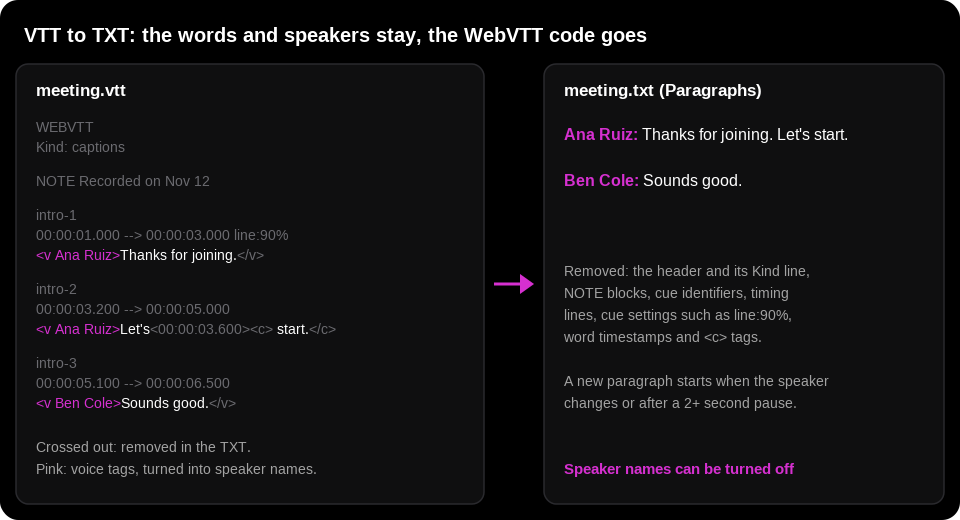
A WebVTT file is plain text that starts with the word WEBVTT. After that header come cues: an optional identifier line, a timing line such as 00:00:01.000 --> 00:00:03.000 (with a period before the milliseconds, unlike SRT's comma), and the caption text. Cues can carry settings for position and alignment, and the text can carry tags for voices, styling and word timing. This is what happens to each part:
| In the VTT file | In the TXT |
|---|---|
| WEBVTT header and lines under it (Kind:, Language:) | Removed |
| NOTE, STYLE and REGION blocks | Removed |
| Cue identifiers (intro-1, numbers, long IDs) | Removed |
| Timing lines (00:00:01.000 --> 00:00:03.000) | Removed, or the start time as [00:01] with Start times on |
| Cue settings (line:90% position:10% align:start) | Removed |
| Voice tags (<v Ana Ruiz>) | “Ana Ruiz: ” when the speaker changes, or removed |
| Word timestamps (<00:00:03.600>) and <c> tags | Removed, words kept |
| <i>, <b>, <u>, <lang> and other tags | Removed, text kept |
| &, < and other entities | Turned back into &, < … |
Meeting transcripts from Zoom and Teams
Meeting tools are a common source of VTT files. Zoom saves the audio transcript of a cloud recording as a VTT file, and Microsoft Teams lets meeting organizers download a transcript as .docx or .vtt. Opened in a text editor, they show a timing line above every short stretch of speech, which makes them hard to read or quote.
Transcript files mark speakers in one of two ways, and the converter reads both:
- A WebVTT voice tag around the text, such as <v Ana Ruiz>Thanks for joining.</v>.
- The name written at the start of the text, such as “Ana Ruiz: Thanks for joining.” When most cues in a file start this way, the converter treats the name as the speaker. A file where only a line or two starts with a word and a colon is left as it is.
Automatic captions with repeated lines
Automatic captions often scroll: a line stays on screen while the next one types in, word by word. A VTT file stores that by repeating each line in the next cue and by putting a timestamp before each word, like Let's<00:00:03.600><c> start.</c>. A plain copy of the text prints every line two or three times.
The converter removes the word timestamps and tags, and Remove repeated lines drops a line when it is the same as the line just before it. Turn it off if the video really repeats a line, like “No. No.” in two captions.
VTT to Word or Google Docs
There is no Word export in the converter, but you don't need one: copy the text and paste it into Word or Google Docs, or open the downloaded .txt file in Word, then save it as .docx. Paragraphs layout gives the cleanest document, with one paragraph per speaker turn.
If the transcript comes from Teams and you only need a document, check the Download menu first: organizers can download the transcript as .docx directly.
Other subtitle tools
To keep the timing and change the format instead, use the VTT to SRT converter. For SRT files, the SRT to TXT converter runs the same conversion with SRT examples, and the SRT editor fixes individual lines and times. Our guide to SRT files compares the two formats.
If you make videos in Canva, CaptionCraft generates captions automatically from the video's speech and renders them into the video with animated templates, so you don't need a subtitle file or a transcript to start. CaptionCraft doesn't create SRT, VTT or TXT files.
Sources
- WebVTT: The Web Video Text Tracks Format (W3C)
- Web Video Text Tracks Format (WebVTT) (MDN Web Docs)
- Using audio transcription for cloud recordings (Zoom Support)
- Start, stop, and download live transcripts in Microsoft Teams meetings (Microsoft Support)
Frequently asked questions
Can you convert VTT to TXT?
Yes. Open or paste the VTT file in the converter above and click Download .txt. The header, timing lines, settings and tags are removed and the words stay.
What is the difference between VTT and TXT?
A VTT file is also plain text, but it holds timed captions: each line has a start and end time and can carry tags. A TXT transcript has only the words, so it's easier to read, search and edit, but it can't be shown as captions.
How do I open a VTT file?
Any text editor opens it, such as Notepad on Windows or TextEdit on Mac, and so do Word and Google Docs. You'll see the timing lines and tags too; the converter removes them.
How do I convert VTT to Word?
Convert it to text here, then paste the text into Word or open the .txt file in Word and save it as .docx. Teams transcripts can also be downloaded as .docx directly.
Can I keep the timestamps?
Yes. Turn on Start times and each line or paragraph begins with its start time, like [01:05], or [01:02:05] for files longer than an hour.
Is my VTT file uploaded?
No. The file is read and converted in your browser and never leaves your device, which matters for meeting transcripts.
Create captions directly in Canva
Generate, edit, style, preview, and export video captions with CaptionCraft.
Install CaptionCraft in Canva