CaptionCraft guide
How to animate text in Canva (titles and captions)
To animate text in Canva, select the text box, click Animate in the toolbar and pick a style such as Typewriter, Ascend or Rise; hover over a style to preview it. You can then choose whether it plays when the text appears, disappears or both, and change when the text shows up with Show element timing. Below: each step with screenshots from the Canva editor, the options that matter for video, how to animate captions, and fixes for text that won't move.
Updated November 20, 2026 · 6 min read
How to animate text in Canva, step by step
These steps follow the Canva editor on a desktop browser as we saw it on November 20, 2026, and Canva's help article on animations. Menu names can change.
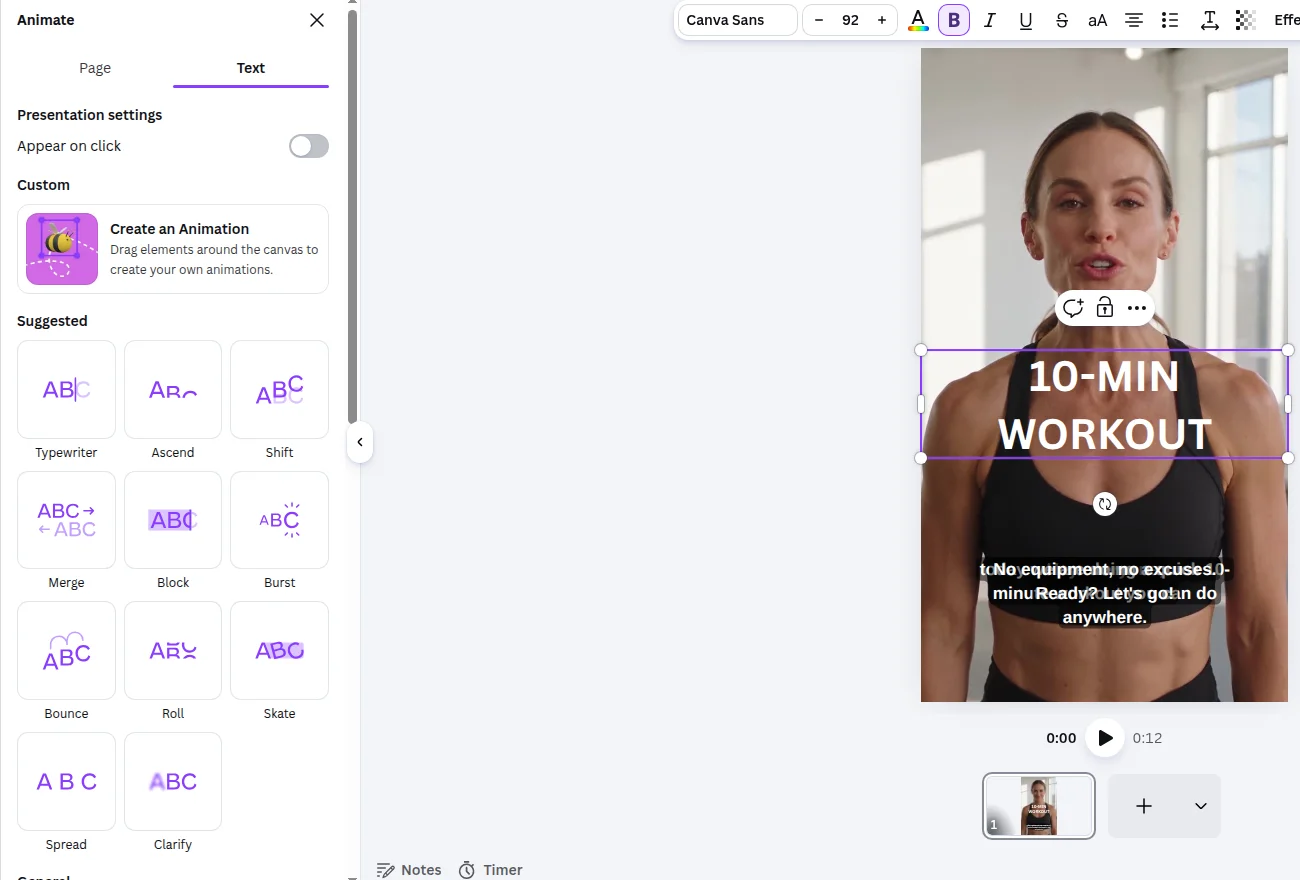
- 1
Select the text
Click a text box once so its handles show. To add one, open Text in the left panel and click Add a heading or Add a text box.
- 2
Click Animate
Animate sits in the toolbar above the editor, between Effects and Position. The Animate panel opens on the left with a Page tab (animates the whole page) and a Text tab (animates the selected text box).
- 3
Preview and pick a style
Hover over a style to preview it on the canvas, then click it to apply it. The Text tab lists Suggested text animations first, then General ones, then Add-on effects you can combine with either.
- 4
Set the options
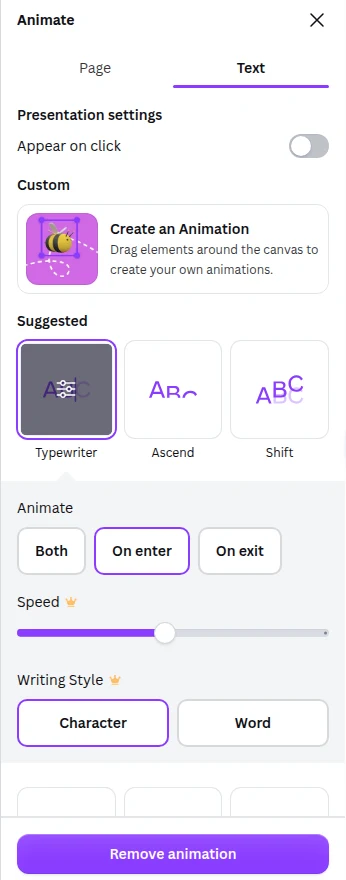
Choose when the animation plays: On enter (selected by default), On exit or Both. Depending on the style, you can also set the speed, the writing style (by character, word or line) and a direction.
- 5
Play it back
Press play under the page to check the result. To change the style later, select the text and pick another one; to undo it, click Remove animation at the bottom of the panel.
Which text animation to choose
Canva groups text animations in three lists. Which ones you see depends on what you selected: text, a photo, a video or a graphic each get their own set. Styles marked with a crown, and some settings such as Speed and Writing Style, need a paid Canva plan.
| Group | Styles we saw on the Text tab | Good for |
|---|---|---|
| Suggested | Typewriter, Ascend, Shift, Merge, Block, Burst, Bounce, Roll, Skate, Spread, Clarify | Titles and hooks: letters or words build in one by one |
| General | Rise, Pan, Fade, Pop, Wipe, Blur, Succession, Breathe, Baseline, Drift, Tectonic, Tumble, Neon, Scrapbook, Stomp | Moving or fading the whole text box |
| Add-on effects | Rotate, Flicker, Pulse, Wiggle | A subtle extra on top of another style |
Make a typewriter text effect
Typewriter is the one most people mean by a "writing" animation: the text types itself in, one character at a time. Select the text, click Animate and pick Typewriter. Under Writing Style, Character types letter by letter and Word drops in whole words; the Speed slider sets how fast. Ascend works the same way but slides words or lines up into place, with a choice of direction.
On a video, keep the effect short. A title that takes three seconds to type out eats into the first seconds viewers decide on, and long text is harder to read while it's still moving.
Change when text appears (one at a time)
By default, every element is on screen for the whole page, so the animation plays at the start. To make a title come in later, or several lines appear one after another, change each element's timing.
- 1
Show element timing
Select the text, click More (…) in the floating toolbar or right-click it, and choose Show element timing. A bar with the element's name appears above the page thumbnail below the editor.
- 2
Drag the edges
Drag the bar's left edge to set when the text appears and its right edge to set when it disappears. While you drag, the time shows under the page; in our test, dragging the start to 0:03 made the heading appear three seconds in.
- 3
Repeat for each line
Give each text box a later start to make them appear one at a time. Their animations play when each one appears.
- For presentations, turn on Appear on click instead: elements then appear on each click, and Click order sets the sequence.
- For a custom path, choose Create an Animation and drag the element across the canvas to record its movement.
How to animate captions in Canva
Captions are text too, but they change with the speech, so they have their own animations. Generate captions first (select the video, then Captions in the toolbar; our Canva auto captions guide shows each screen). Then click the captions once to select the whole caption track and click Animate.
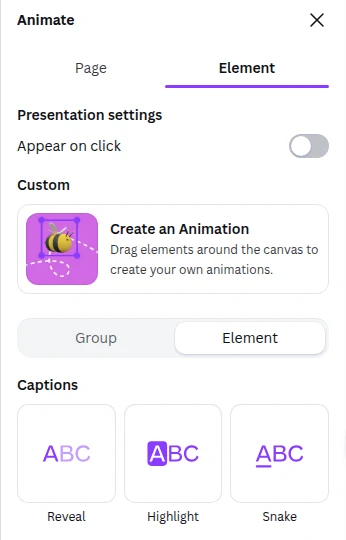
The panel opens on an Element tab with a Captions group: Reveal, Highlight and Snake. Canva's help center says these caption animations are rolling out gradually, so your account may not show all three. Below them are the same Suggested styles as for text, such as Typewriter and Ascend. To fix the words or timing afterwards, see how to edit captions in Canva.
Animated captions synced to every word
If you want captions where each word pops, fills or lights up exactly as it's spoken, a caption app can do more than a text animation. CaptionCraft (we make it) runs inside the Canva editor: it transcribes the speech in more than 100 languages, lets you fix the text and the timing of individual words, and renders the video with one of 16 animated caption templates, from a clean Classic line to word highlights and karaoke captions. Style settings apply to every caption at once, with a live preview.
To try it, click Apps in the left panel, search for CaptionCraft, click Export, then pick a template in the Styles tab and click Render. All 16 templates are side by side in our caption styles gallery.
Why is my text not moving in Canva?
If an animation doesn't play, check these first:
- You downloaded a still format. Animations show when you play or present the design and in video or GIF downloads; Canva's help center lists those as the way to share animated designs.
- Reduce motion is on for your device. Canva says animations are reduced when it is, and transitions and background animations are removed.
- The animation is set to On exit only, so nothing happens when the text appears. Pick On enter or Both.
- The text appears later than you think. Check its bar under Show element timing.
- The style needs a paid plan (crown icon) and wasn't applied.
Sources
- Apply, change, or remove animations (Canva Help Center)
- Generate and animate captions in Canva (Canva Help Center)
Frequently asked questions
How do I add animation to text in Canva?
Select the text box, click Animate in the toolbar, hover over the styles to preview them and click one to apply it. Choose On enter, On exit or Both.
Does Canva have a writing or typing animation?
Yes. Typewriter types the text in letter by letter, or word by word if you set Writing Style to Word.
How do I make text appear one at a time in Canva?
Right-click each text box, choose Show element timing and drag the start of its bar later. For presentations, turn on Appear on click and set the Click order.
Can I change the speed of a text animation?
Yes, with the Speed control under the style; Canva's help center also mentions Slow, Medium and Fast presets and duration controls. In our editor, Speed was marked as a paid feature.
How long can a Canva animation be?
Canva's help center says each animation can be at most 10 seconds long and a design can have up to 50 created animations.
Can I animate captions in Canva?
Yes. Select the captions, click Animate and choose Reveal, Highlight or Snake, which Canva is rolling out gradually. For word-by-word animated templates, use a caption app such as CaptionCraft.
Create captions directly in Canva
Generate, edit, style, preview, and export video captions with CaptionCraft.
Install CaptionCraft in Canva