CaptionCraft guide
How to add captions to YouTube Shorts
To add captions to a YouTube Short on your phone, open the Shorts editor in the YouTube app and tap Captions: YouTube adds automatic captions, and you can fix wrong words and change the font and text color. To turn captions on while watching, tap the player, then the Closed captions (CC) button. On a computer, use the Subtitles page in YouTube Studio, where you can upload a caption file, auto-sync a transcript or type captions yourself, and where YouTube's automatic captions show up too. Below: each option from YouTube's help center (November 2026), captioning in Canva before upload, and keeping text clear of the Shorts buttons.
Updated November 19, 2026 · 9 min read
Where is the Captions button on YouTube Shorts?
There are two different buttons, depending on whether you're making the Short or watching it.
- Making a Short: Captions is a tool in the Shorts editor of the YouTube app, alongside text, voiceover and the timeline. YouTube's help center lists it in the iPhone & iPad version of its Enhance your Shorts page and notes that captions are currently only available in certain languages and on certain mobile devices, so it may be missing on your phone. You can always add captions afterwards in YouTube Studio (Method 2).
- Watching a Short: tap the video player once to show its options, then tap Closed captions (CC). Tap it again to turn captions off. If there's no CC button, the Short has no caption track; captions that are part of the video still show.
- Captions on by default: in the YouTube app, tap your profile picture, then Settings → Captions and turn on Show captions; on iPhone and iPad, open the Settings app instead, go to Accessibility → Subtitles & Captioning and turn on Closed Captions + SDH. YouTube also remembers the last time you turned captions on or off in the player.
- Captions only when the sound is off: in the player, tap Settings → Captions and turn on Show when muted, available on phones and tablets.
Three places to add captions to a Short
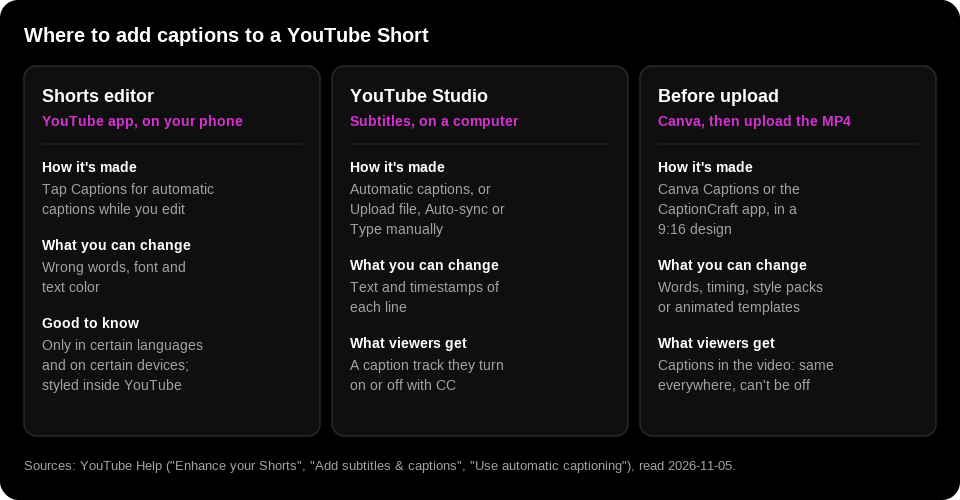
Captions you add in the Shorts editor are made and styled on your phone as you edit the Short. Captions in YouTube Studio are a separate caption track, which viewers turn on or off with the CC button. Captions made in Canva before upload are part of the video file itself, so they look the same on YouTube, TikTok and Instagram Reels.
| Method | Where | Styling | Best for |
|---|---|---|---|
| Captions button | Shorts editor in the YouTube app | Font and text color | A Short you record or edit on your phone |
| Studio Subtitles | YouTube Studio on a computer | Shown in each viewer's caption style | Accurate, switchable captions, or a caption file you already have |
| Captions made in Canva | Canva, before upload | Style packs or animated templates | Branded or word-by-word captions, posting one video to several apps |
Method 1: the Captions button in the Shorts editor
This is the flow most tutorials show. YouTube's help center lists it under "Add and edit your captions" on its Enhance your Shorts page, with a note that captions are currently only available in certain languages and on certain mobile devices.
- 1
Start a Short
In the YouTube app, tap Create and select Short. Record, or tap Add at the bottom left to pick a video from your phone, then tap the check mark to open the editor.
- 2
Tap Captions
YouTube starts adding automatic captions from the speech in your video.
- 3
Fix and style them
Correct wrong words, especially names and numbers, and change the font and text color.
- 4
Check the placement and publish
Make sure the captions sit clear of the buttons (see below), tap Next, add a title and tap Upload Short.
Method 2: YouTube Studio's Subtitles page
YouTube's automatic captions apply to Shorts too. When available, they're published automatically, though not always right after upload, and YouTube recommends reviewing them because accents and background noise cause errors. You can also add your own captions.
- 1
Open the Short in Studio
Sign in to YouTube Studio on a computer, select Subtitles in the left menu and click your Short.
- 2
Fix automatic captions
Next to the automatic captions, select Edit, then Duplicate and edit. Change any line and click Publish; YouTube saves your revision as a new caption track.
- 3
Or add your own
Click Add language, choose it, then Add under Subtitles. Pick Upload file for an SRT or VTT file, Auto-sync to paste a transcript that YouTube times to the speech, or Type manually.
- 4
Adjust timing if needed
Each line has two timestamp boxes. To fix a whole file, use Options → Download subtitles, edit it and upload it again.
Working with caption files
YouTube accepts SubRip (.srt) and WebVTT (.vtt) among other formats. If the file is offset from the speech, shift every timestamp at once with the subtitle timing shifter before you upload it. For Auto-sync, YouTube wants a plain .txt transcript in the same language as the video: the SRT to TXT converter strips the numbers and timestamps from an existing subtitle file. Both run in your browser and upload nothing.
Method 3: caption the video in Canva before you upload
If you edit in Canva, caption there and upload a finished MP4. The captions are part of the video, so they show whether or not CC is on, and you get styles the Shorts editor doesn't offer, such as word-by-word highlights.
- 1
Use a 9:16 design
YouTube takes Shorts up to 3 minutes long with a square or vertical aspect ratio. Start from a vertical 1080×1920 design, such as Canva's Instagram Story size, and add your video.
- 2
Generate the captions
Select the video, click Captions in the toolbar, pick a style pack and click Generate captions; our guide on how to add subtitles in Canva shows each screen. For animated captions, use the CaptionCraft app instead: click Apps, search for CaptionCraft, click Export, then pick one of 16 templates in the Styles tab and click Render, as shown in our Canva auto captions guide.
- 3
Fix the text and timing
Correct the words in Canva's Transcript tab, or in CaptionCraft's Subtitles tab, which lists each caption's start and end time.
- 4
Download and upload
Download the MP4 and upload it as a Short, from the YouTube app or from YouTube Studio (Create → Upload videos). Skip the Captions button in the Shorts editor so the captions don't appear twice.
Keep captions clear of the Shorts buttons
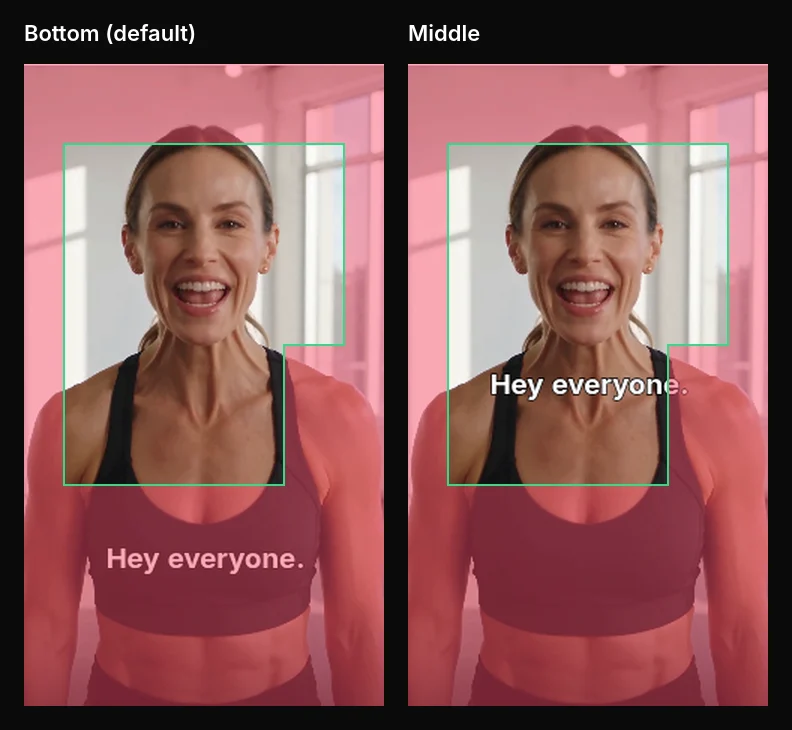
In the Shorts feed, buttons and the video's details are drawn over the video. YouTube doesn't publish pixel margins for organic Shorts, but its editor shows visual guides: as you move text or stickers, they mark where the like button, comments and description might appear, and animated white lines warn you when you're too close to the edge.
Traditional subtitles go at the bottom, where those overlays are. In CaptionCraft, the default Bottom position put the caption line at about 75–79% of the frame height in our test; Middle (about 47–54%) moved every caption into the clear part of the frame at once. Posting the same video to TikTok or Reels? Check a frame with the TikTok safe zone checker or the Reels safe zone checker.
How viewers see captions on Shorts
Captions from YouTube Studio or the Shorts editor's automatic captions are a caption track that each viewer switches on or off with the CC button, in their own size and style (Settings → Captions → Size and style). Captions burned into the video in Canva can't be switched off, and they look the same for everyone.
If you burn captions in, YouTube may still publish automatic captions on the same Short, so a viewer with CC on could see both. To delete a caption track, open Subtitles in YouTube Studio and choose Options → Delete next to that language.
- Use strong contrast, such as white text with an outline or a dark box; the caption styles gallery shows 16 animated options.
- Posting the same video elsewhere? See how to add captions on TikTok and how to add captions to Instagram Reels.
Sources
- Enhance your Shorts (iPhone & iPad) (YouTube Help)
- Create YouTube Shorts (YouTube Help)
- Upload YouTube Shorts (YouTube Help)
- Use automatic captioning (YouTube Help)
- Add subtitles & captions (YouTube Help)
- Edit or remove captions (YouTube Help)
- Supported subtitle and closed caption files (YouTube Help)
- Manage caption settings (Android) (YouTube Help)
- Manage caption settings (iPhone & iPad) (YouTube Help)
- Generate and animate captions in Canva (Canva Help Center)
Frequently asked questions
How do I add auto captions to YouTube Shorts?
In the YouTube app, open the Shorts editor and tap Captions, then correct and restyle them. YouTube's automatic captions in Studio also apply to Shorts once processed.
Why can't I add captions to my YouTube Short?
YouTube says the Captions button in the Shorts editor is only available in certain languages and on certain mobile devices. Automatic captions may also be missing if the audio is unclear, starts with a long silence, mixes speakers or languages, or hasn't finished processing. You can still add captions in YouTube Studio's Subtitles page.
How do I add text to my YouTube Shorts?
In the Shorts editor, tap Text, type your message and change its color, style and alignment. Use the timeline to set when each text appears and disappears.
Can I upload an SRT file to a YouTube Short?
Yes. In YouTube Studio, open Subtitles, select the Short, click Add language, then Add and Upload file. YouTube supports SRT and VTT among other formats.
Where is the caption button in YouTube Shorts?
To add captions, tap Captions in the Shorts editor of the YouTube app; YouTube says it's only available in certain languages and on certain devices. To see captions while watching, tap the player once, then the Closed captions (CC) button.
How do I turn on captions on YouTube Shorts?
Tap the player, then the Closed captions (CC) button. If you don't see it, the Short has no caption track; captions burned into the video show without it. To keep captions on, turn on Show captions under Settings → Captions.
Can I add animated or word-by-word captions to Shorts?
The Shorts editor lets you change the caption font and text color. For word-by-word highlights or karaoke-style captions, caption the video in Canva with an app such as CaptionCraft, download the MP4 and upload that.
Create captions directly in Canva
Generate, edit, style, preview, and export video captions with CaptionCraft.
Install CaptionCraft in Canva