Free tool
SRT to TXT converter
Paste or open an SRT file and get plain text back: the cue numbers, timing lines and formatting tags are removed and only the spoken words stay. Choose one line per caption or readable paragraphs, keep start times if you need them, and download a .txt file. WebVTT (.vtt) files work too, and nothing is uploaded.
Updated November 16, 2026 · 6 min read
Plain text (TXT)
Runs in your browser. Your file never leaves your device.
How to convert SRT to TXT
The converter reads every caption, keeps its words and drops the subtitle code around them.
- 1
Add your subtitle file
Click Open .srt or .vtt file, or paste the subtitles into the input box. SRT and WebVTT are both detected automatically.
- 2
Pick a layout
One line per caption keeps each subtitle on its own line. Paragraphs joins the captions into running text, the way a transcript reads.
- 3
Choose what to keep
Turn on Start times to put a time like [01:05] before each line or paragraph. Speaker names and Remove repeated lines are on by default.
- 4
Download or copy
The status line shows how many captions and words were converted. Download the .txt file, which keeps your file's name, or copy the text.
What the converter removes and keeps
An SRT file is already a text file, but most of it is subtitle code: a number for each cue, a timing line, and sometimes formatting tags. This is what happens to each part:
| In the subtitle file | In the TXT |
|---|---|
| Cue numbers (1, 2, 3…) and WebVTT cue names | Removed |
| Timing lines (00:00:01,000 --> 00:00:03,500) | Removed, or the start time as [00:01] with Start times on |
| Tags such as <i>, <b>, <u> and <font> | Removed, text kept |
| Position codes such as {\an8} and cue settings | Removed |
| WEBVTT header, NOTE and STYLE blocks | Removed |
| Karaoke timestamps inside the text (<00:00:04.500>) | Removed |
| WebVTT voice tags (<v Ana>) | “Ana: ” before her lines, or removed |
| &, < and other entities | Turned back into &, < … |
| Line breaks inside a caption | Joined with a space |
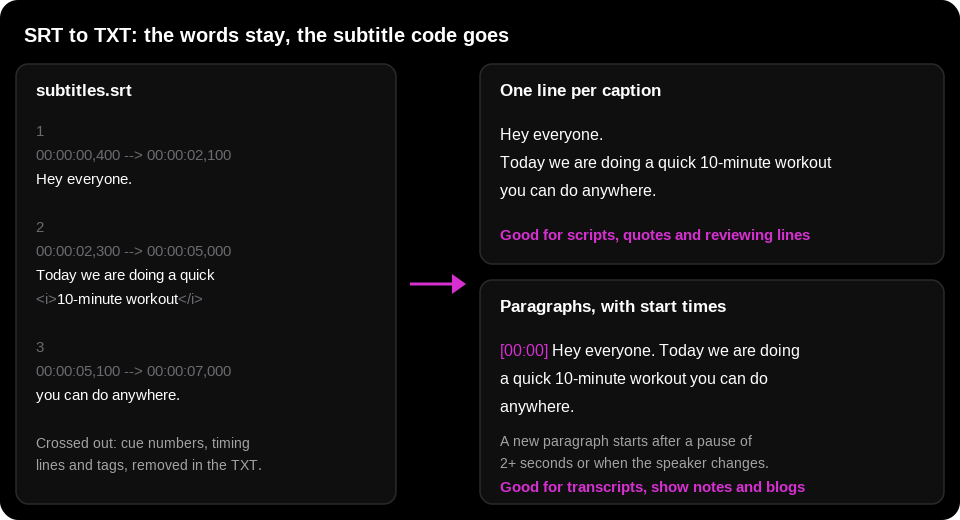
One line per caption or paragraphs
One line per caption is the closest to the original file: each subtitle becomes one line, which is handy for checking a script, quoting a line or pasting captions into a spreadsheet. Dialogue lines that start with a dash stay on separate lines, so two speakers in one caption aren't merged.
Paragraphs is better for reading. Captions are joined into sentences, and a new paragraph starts when there is a pause of two seconds or more between two captions, or when the speaker changes. With Start times on, each paragraph begins with the time of its first caption, which makes a quick table of contents for show notes or a video description.
Auto-captions and meeting transcripts
Two kinds of files need more than stripping timestamps, and the converter handles both:
- Rolling captions, the style automatic captions often use, where a line stays on screen while the next one types in. The file stores this by repeating each line in the next cue, so a naive conversion prints every line twice. Remove repeated lines drops a line when it is the same as the line just before it. Turn it off if your video really repeats a line, like “No. No.” in two captions.
- Files with speakers. WebVTT can mark who speaks with a voice tag, <v Ana Ruiz>. With Speaker names on, the text shows “Ana Ruiz:” when the speaker changes, and Paragraphs starts a new paragraph for each new speaker. Meeting transcripts that write the name into the text instead, such as “Ana Ruiz: Hello”, are read the same way when most captions start like that; the VTT to TXT converter page covers Zoom and Teams files.
Why not just rename .srt to .txt?
You can: an SRT file is plain text, so renaming it opens fine in any text editor. But the result still has every cue number, every timing line and every tag. Opening it in Notepad or TextEdit and deleting them by hand works for a few lines; for a whole video, a converter does it in one step without missing any.
What to do with the transcript
A plain transcript is easier to search, quote, proofread or turn into a blog post than a subtitle file. It also works the other way: YouTube can take a plain text transcript and time it to your video automatically with Auto-sync, as long as the transcript is in the language spoken in the video. YouTube's tips say a blank line forces a new caption, so the One line per caption layout is a good starting point there.
To change subtitle formats instead, use the SRT to VTT converter or the VTT to SRT converter, and if the captions are out of sync, the subtitle shifter.
If your video is edited in Canva, CaptionCraft generates captions automatically from the video's speech and renders them into the video with animated templates, so you don't need a subtitle file or a transcript to start. CaptionCraft doesn't create SRT, VTT or TXT files.
Sources
- WebVTT: The Web Video Text Tracks Format (W3C)
- Add subtitles & captions (YouTube Help)
- Tips for creating a transcript file (YouTube Help)
Frequently asked questions
How do I convert an SRT file to TXT?
Open or paste the SRT file in the converter above, pick one line per caption or paragraphs, and click Download .txt. Cue numbers, timestamps and tags are removed automatically.
Can I keep the timestamps?
Yes. Turn on Start times and each line or paragraph begins with its start time, like [01:05], or [01:02:05] for files longer than an hour.
Does it work with VTT files?
Yes. It reads SRT and WebVTT. The WEBVTT header, notes, styles and cue settings are removed, and voice tags can become speaker names.
Why does my transcript have every line twice?
Automatic captions often scroll, and the file stores that by repeating each line in the next caption. Keep Remove repeated lines on to drop those duplicates.
Can I turn a TXT transcript back into subtitles?
Not with this tool, because a plain transcript has no timing. YouTube's Auto-sync can time a transcript to your video, and CaptionCraft creates timed captions from the video itself in Canva.
Is my subtitle file uploaded?
No. The file is read and converted in your browser and never leaves your device.
Create captions directly in Canva
Generate, edit, style, preview, and export video captions with CaptionCraft.
Install CaptionCraft in Canva